Write a proposal
Pro
Create a client proposal with AI or from a template, then shape its sections and design.
Proposals are part of Agency, and also have their own item in the sidebar. A proposal is a web page your client opens from a private link. They can read it, accept it, ask for changes or decline, and pay from the same page.
The proposals list#
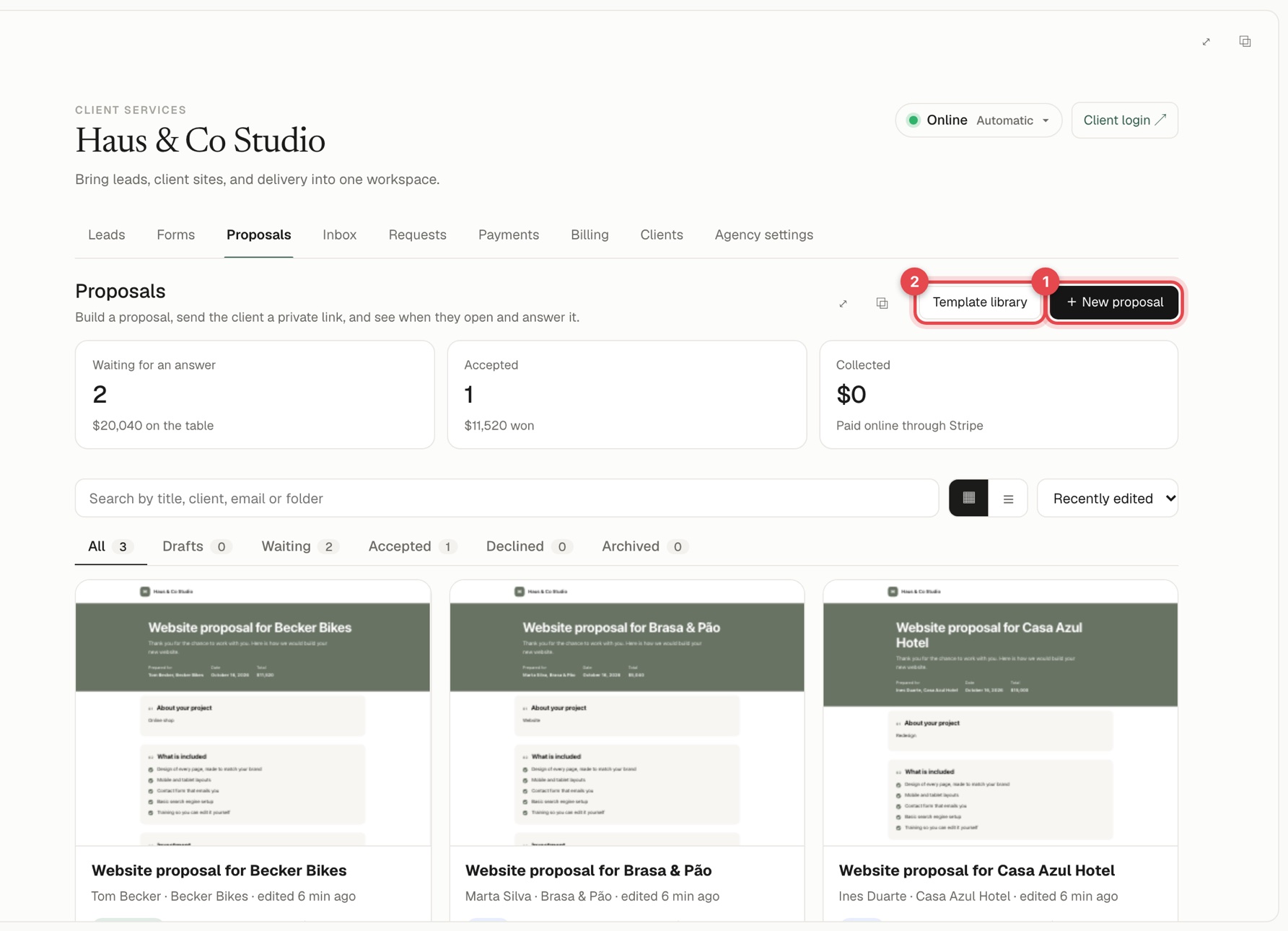
At the top you see Waiting for an answer, Accepted and Collected. Below, search by title, client, email or folder, switch between cards and a list, and sort. The tabs filter by All, Drafts, Waiting, Accepted, Declined and Archived.
Create one#
Press New proposal (1). A box asks What proposal would you like to write?
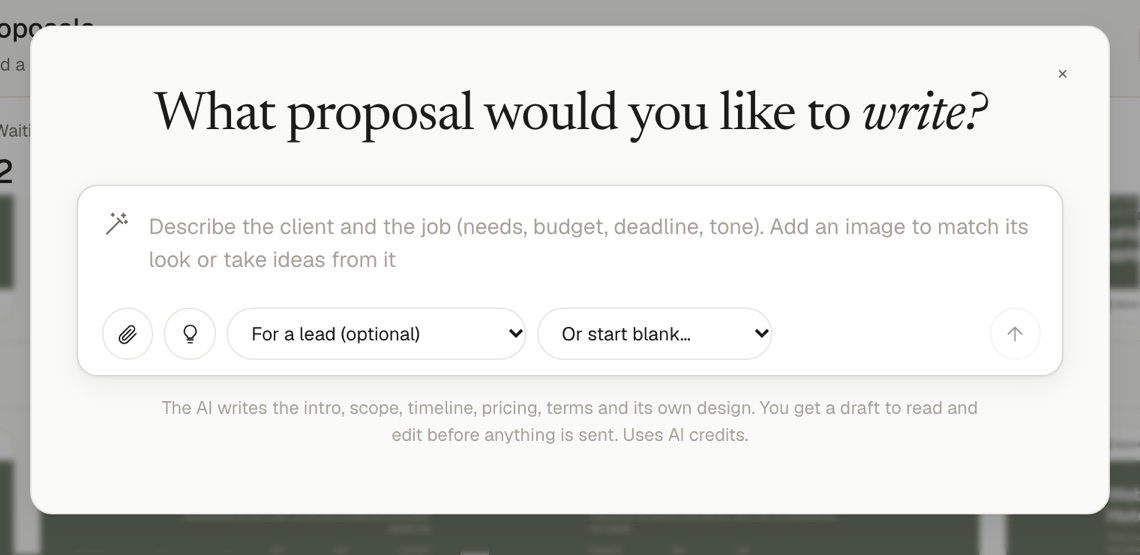
- Describe it. Write the client and the job (needs, budget, deadline, tone). Add an image with the paperclip (1) to match a look. The AI writes the intro, scope, timeline, pricing, terms and its own design. It uses AI credits, and you get a draft to read before anything is sent.
- For a lead (optional) (2) fills in the client, project and price from a lead in Leads and intake forms.
- Or start blank... (3) lets you pick a built-in template, or one of your own.
Edit it#
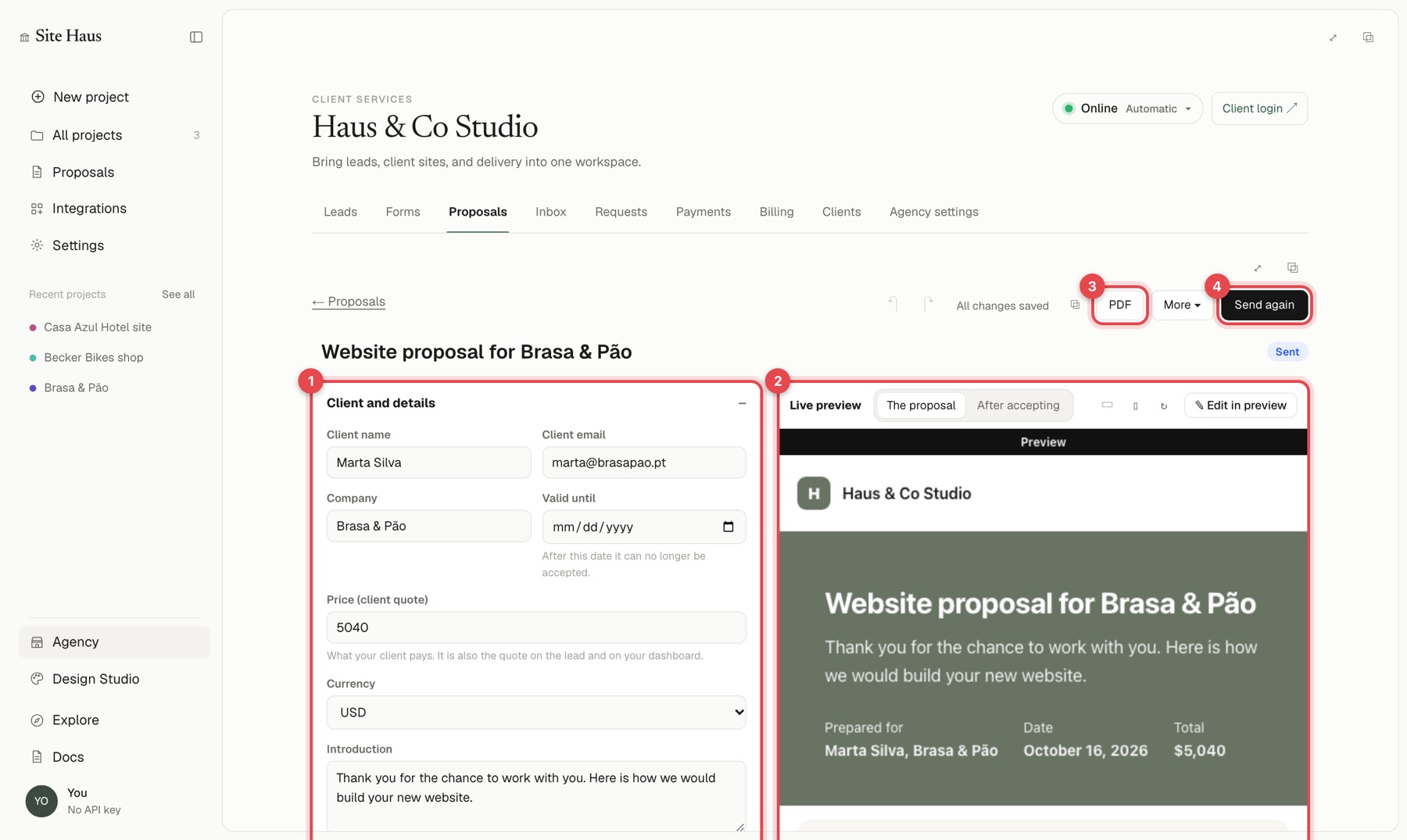
The editor has your settings on the left (1) and a live preview of what the client sees on the right (2). The left side is grouped into Client and details, Design, Sections, Payments and Activity. In the preview, switch between The proposal and After accepting, and use Edit in preview to click text and change it.
Everything saves by itself ("All changes saved"), and there is undo and redo.
Sections#
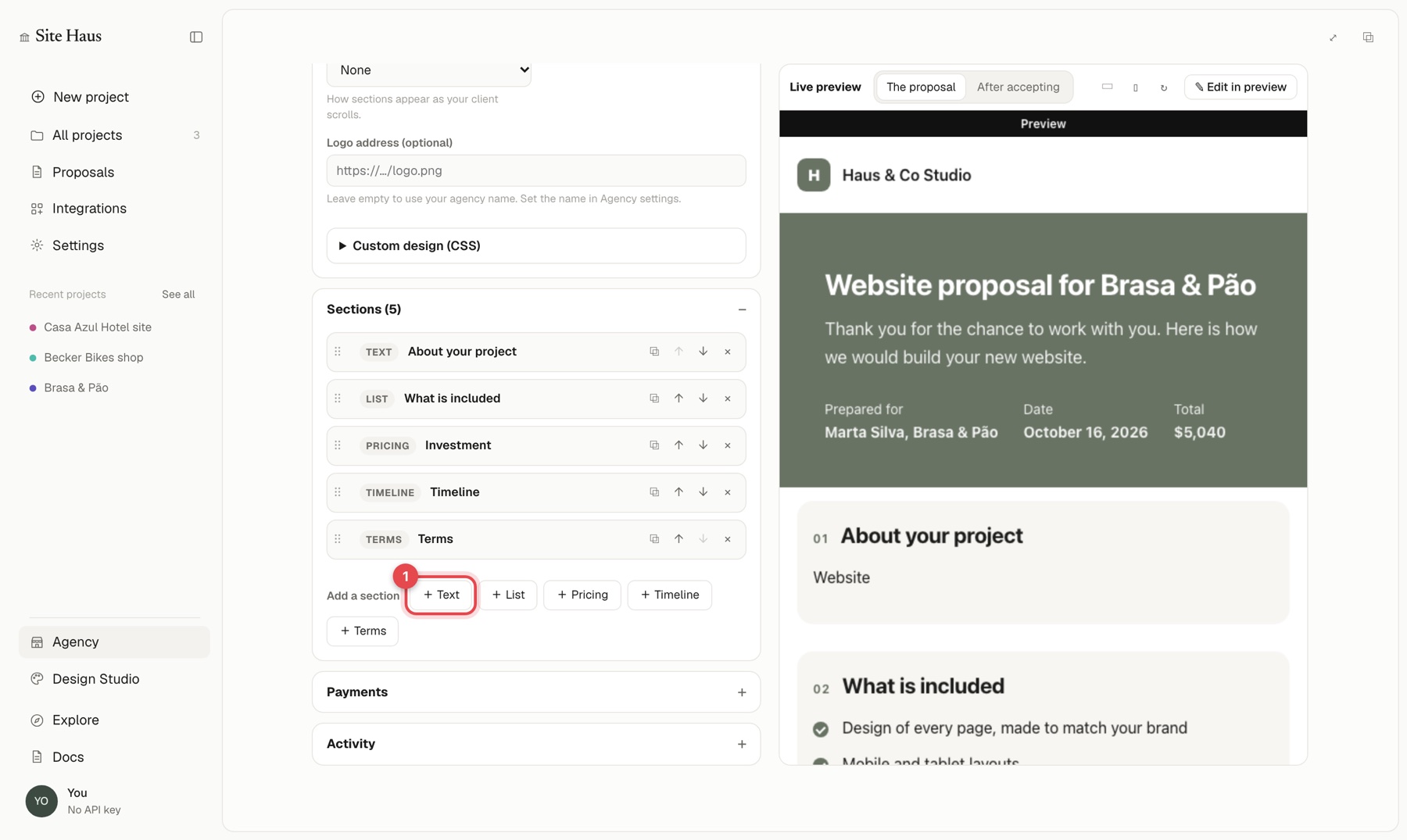
A proposal is made of sections. Under Sections, add one with Add a section:
| Section | Use it for |
|---|---|
| Text | Introduction, scope, anything written |
| List | Deliverables, what is included |
| Pricing | Line items and totals |
| Timeline | Steps with dates, such as "Week 2" |
| Terms | Conditions and the balance terms |
Drag a section by its handle to move it, or use the arrows. You can duplicate or remove a section. A pricing item marked as optional is shown to the client but not added to the total.
Use a web page you built as the proposal#
A proposal does not have to be written in the proposal editor. You can send a page from your own projects instead, such as a landing page or a pitch site built in Site Haus.
- Open All projects, open the menu on the project card and choose Use as a proposal page.
- The proposal opens. Add the client's name and email and the price. A web page's own prices cannot be read, so the price you enter is what the client accepts and pays.
- Press Send (or copy the private link).
The client sees your page exactly as you built it, with Accept, Request changes and Decline under it, and the payment options once they accept. You still see when they open it (the proposal becomes Viewed), how many times, and their answer. When the client accepts, the page is saved as it was at that moment, so later edits to your project do not change what they agreed to.
Pages with their own scripts work, but they run in a sandbox with no access to Site Haus or anyone's account. A project that needs a server is shown from its published address, so publish it first.
Make it look yours#
Under Design you can choose a theme, accent colour, font, header style, a logo address and how sections appear as the client scrolls. Custom design (CSS) is there for advanced changes.
Save it as a template#
Save the proposal as a template to reuse its design and sections for the next client. Template library lets you manage built-in and your own templates, and download or import them as files.
Next: Send and track and Get paid.