Use images and Figma
Give the AI screenshots or a Figma design, and choose how closely it should follow them.
A picture tells the AI more than a paragraph can. You can attach screenshots of sites you like, a sketch, or your own design.
Attach images#
- Open the + menu under the message box and choose Add screenshots or images, or drag images onto the box.
- Add a few words about what you want.
- Choose what the AI should do with the images (see below), then send.
Clone, Remix or Use brand style#
As soon as you attach an image, the question What should I do with your image? appears under it, with three choices:
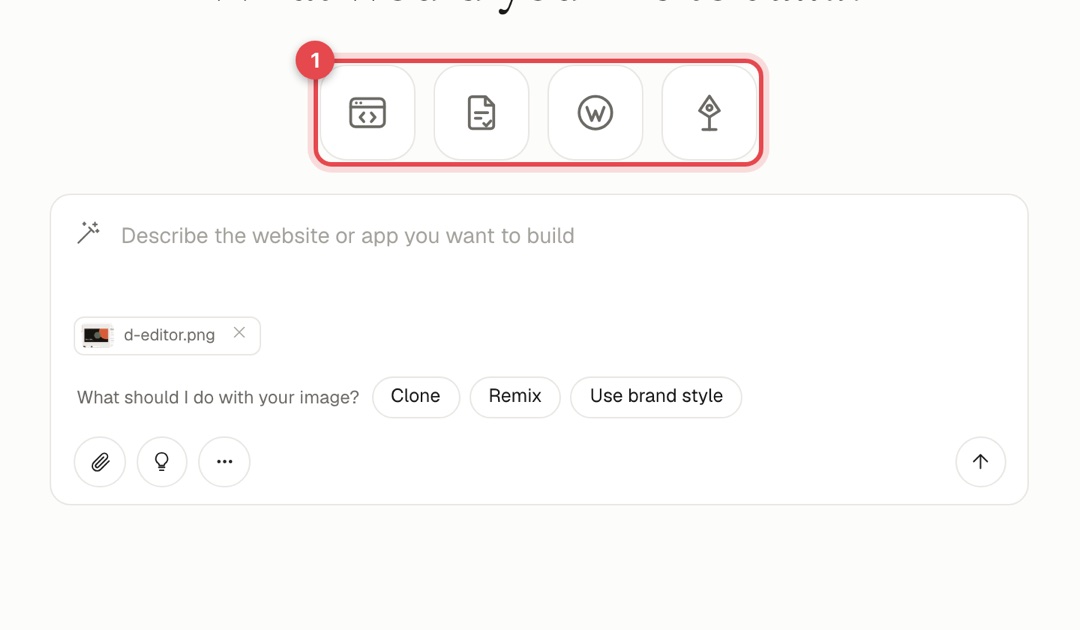
| Choice | What the AI does |
|---|---|
| Clone | Makes a close copy of your images: the same layout and look. |
| Remix | Uses the layout and theme as a starting point to create new ideas. |
| Use brand style | Takes only the colours, text style and mood, and chooses its own layout. |
Rebuild a Figma design#
If your design lives in Figma, Site Haus can read the real design instead of guessing from a picture. It gets every layer's size, position, colours, fonts and text, and downloads the design's own images and icons.
- Connect Figma once: Integrations → Figma. See Figma.
- On the home screen, open the + menu, choose Figma and paste a link to a frame. In Figma, right-click a frame and choose Copy link to selection.
- In an existing project you can add a Figma design with + → Figma, and choose Rebuild this project from it or Add it as a new page or section.
Site Haus reads one frame at a time. Prototype interactions and Figma variables are not carried over.
Tips for better results#
- Use clear, full-width screenshots. Tiny or cropped ones lose detail.
- Send the whole page in a few images rather than one very tall image.
- Tell the AI what to change: "same layout, but for a dental clinic".