Clients and the portal
Pro
Give each client a private space for their sites, files, notes, requests and payments.
The client portal is a branded area where your clients see their own projects. They do not need to understand Site Haus; they just sign in to your portal.
Create a client space#
Open Agency → Clients (called Client spaces) and press + Invite client (1).
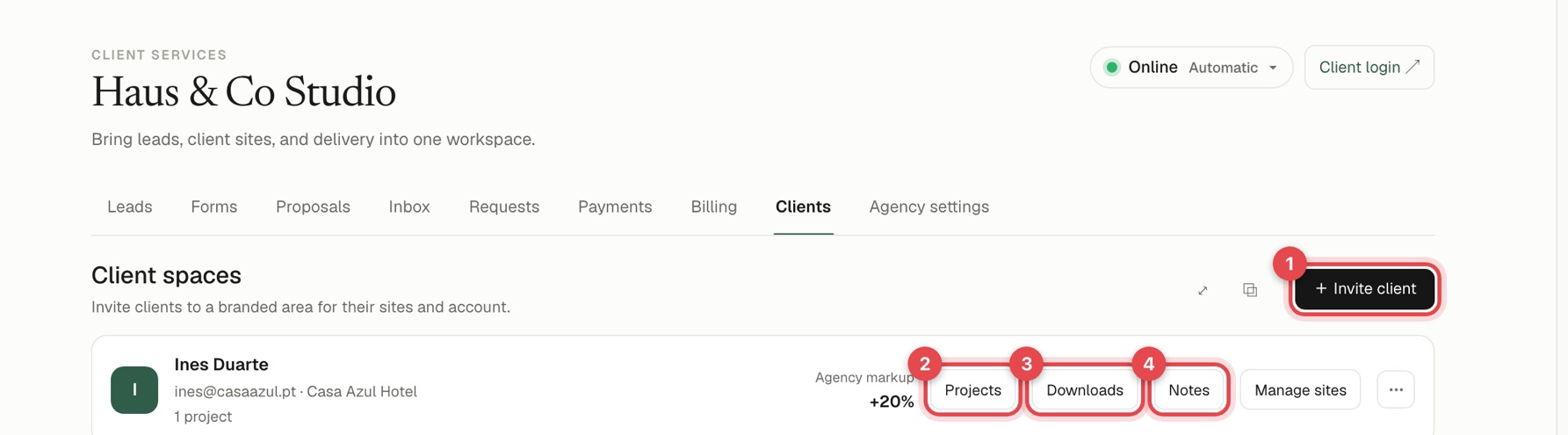
- Enter their name and email. A client login is created, with a password that stays hidden until you press Reveal password.
- Press Email login to client to send the details, or Copy details to send them yourself. Generate new login replaces the password if it is lost.
Each client card shows their name, email, company and the number of projects, with the buttons Projects, Downloads, Notes and Manage sites, plus a menu for more.
Where clients sign in#
Clients sign in at your agency's own address, not on the main Site Haus page. You set the address in Agency settings. See Agency settings. Client login at the top of the Agency page opens it.
What the client sees#
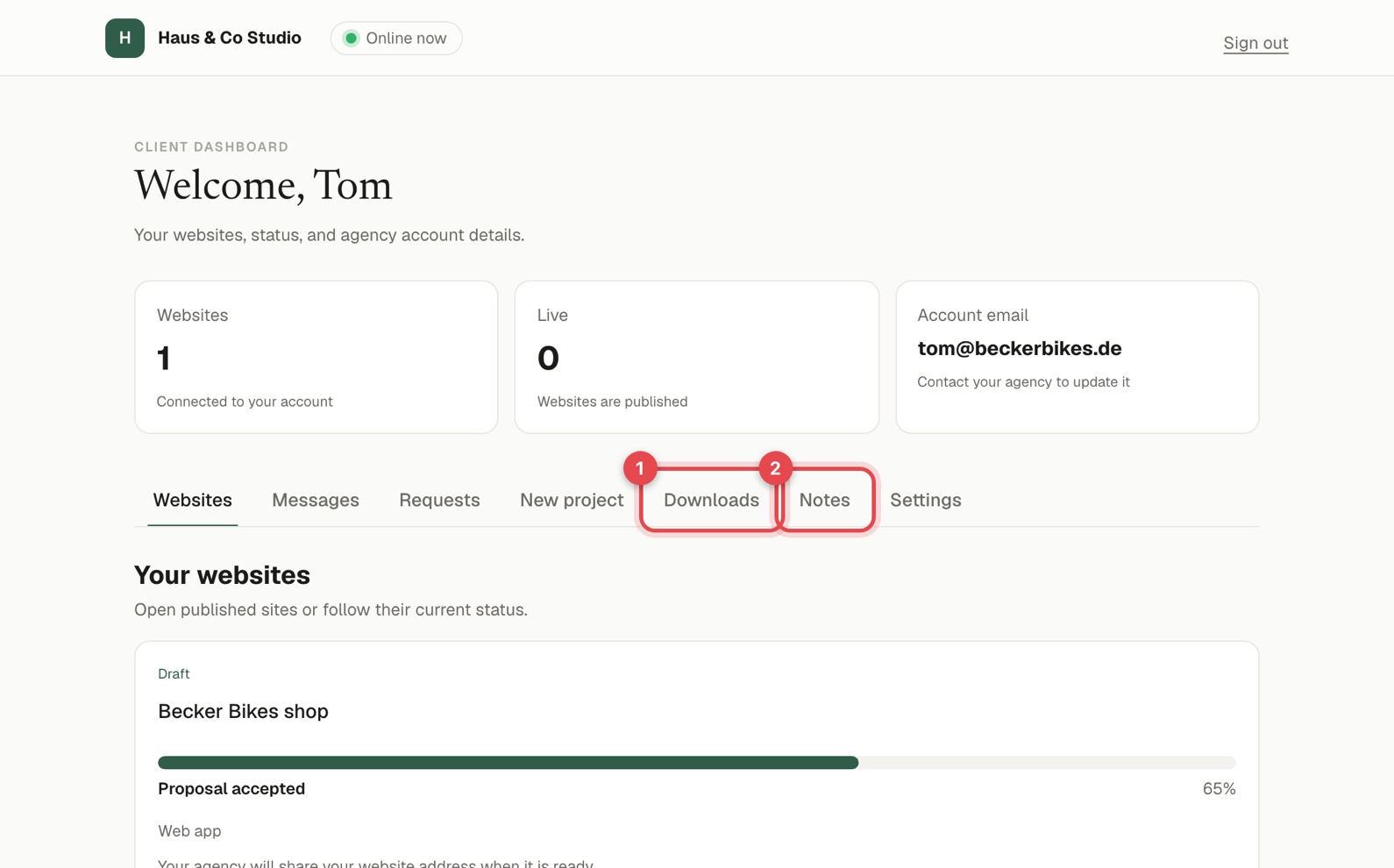
The dashboard greets the client and shows their websites, how many are live and their account email. Tabs along the top are Websites, Messages, Requests, New project, Downloads, Notes and Settings. A small +1 badge appears next to Downloads or Notes when something new has been shared.
- Websites lists their sites as links they can open (you can hide a published website from a client in their settings in Agency → Clients).
- Messages is a built-in conversation with your agency, with the agency already selected.
- Requests is where they ask for changes. You answer in Agency → Tickets.
- New project is an intake form so they can ask you for a new project.
- Downloads holds files, assets and whole projects you chose to share with them.
- Notes holds notes you chose to show them.
- Settings lets them change their theme colour and password. They cannot change their email: they ask you to.
Projects, progress and completing#
Press Projects on a client to see and build their sites in their own agency workspace.
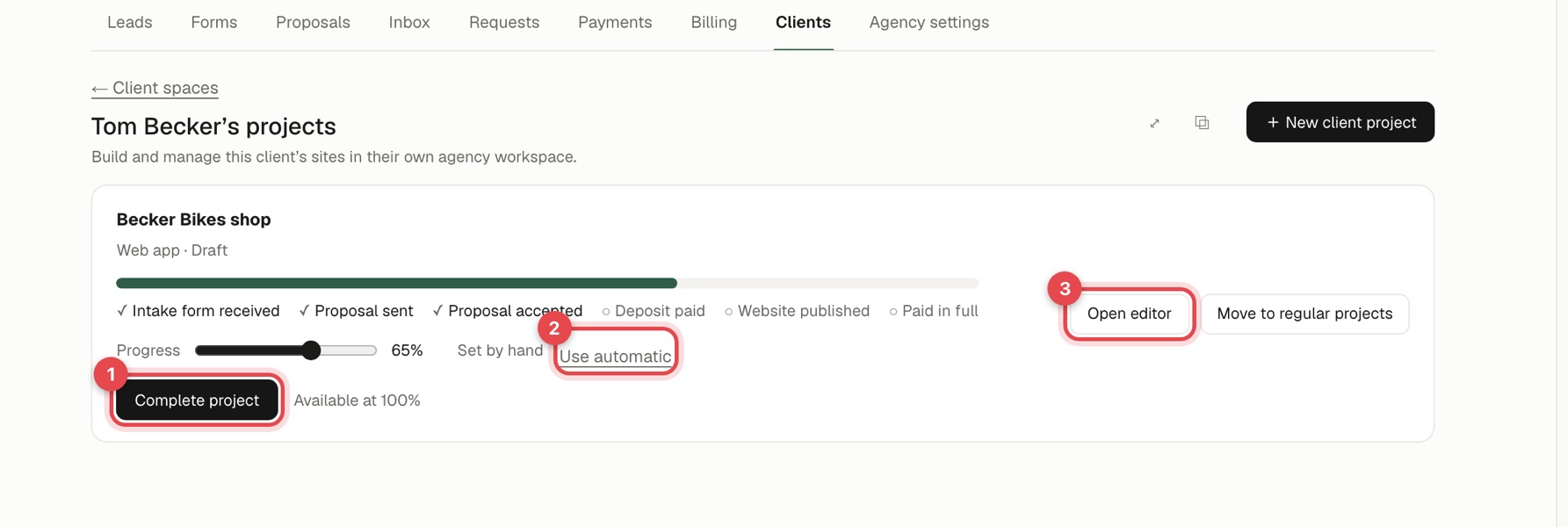
- A progress bar moves by itself as the work advances: Intake form received, Proposal sent, Proposal accepted, Deposit paid, Website published and Paid in full.
- Drag the Progress slider to set it by hand. Use automatic goes back to the steps.
- When it reaches 100%, Complete project becomes available. Completing shares the project's files and notes with the client and removes the client's intake form link.
- Open editor opens the project to work on it. Move to regular projects takes it out of the client's space. New client project adds another.
Share files and notes#
- Downloads: add files for the client to download.
- Notes: write notes that show in the client's dashboard under Notes. A hidden note is only shown after the client presses Reveal, which is handy for logins.
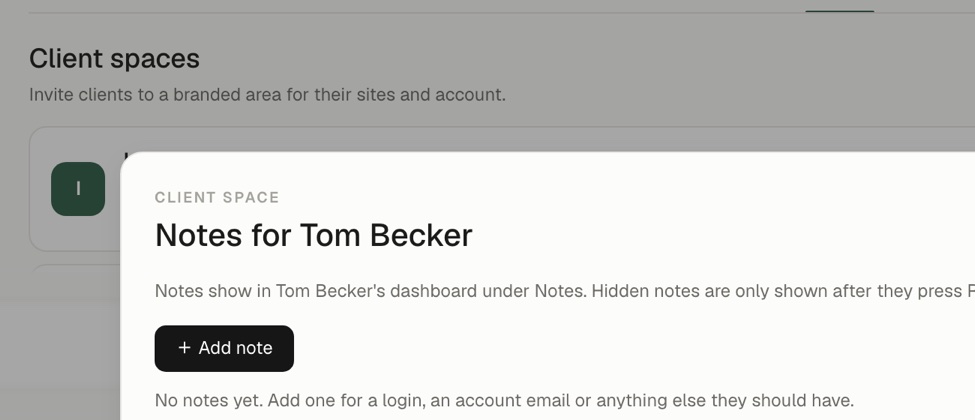
If you leave text unsaved in a note, you are asked whether to save or discard it.