Create a design
Pro
Start a social post, pitch deck, brand guide or poster from a description, your images or a template.
Design Studio is for visual work: brand guidelines, pitch decks, social media posts, flyers and print.
Start from the home box#
The quickest way is the same box you use for everything else:
- On the home screen, click the Design Studio icon (the pen nib, last of the four).
- A small menu opens (2 and 3 below). Choose what you are designing and its size, and optionally a brand or client name.
- Describe the design in the box. Add your logo or a design you like from the + menu, and choose Clone, Remix or Use brand style. A file named like a logo is used as your logo.
- Press the arrow (4). When the design is ready, the editor opens.
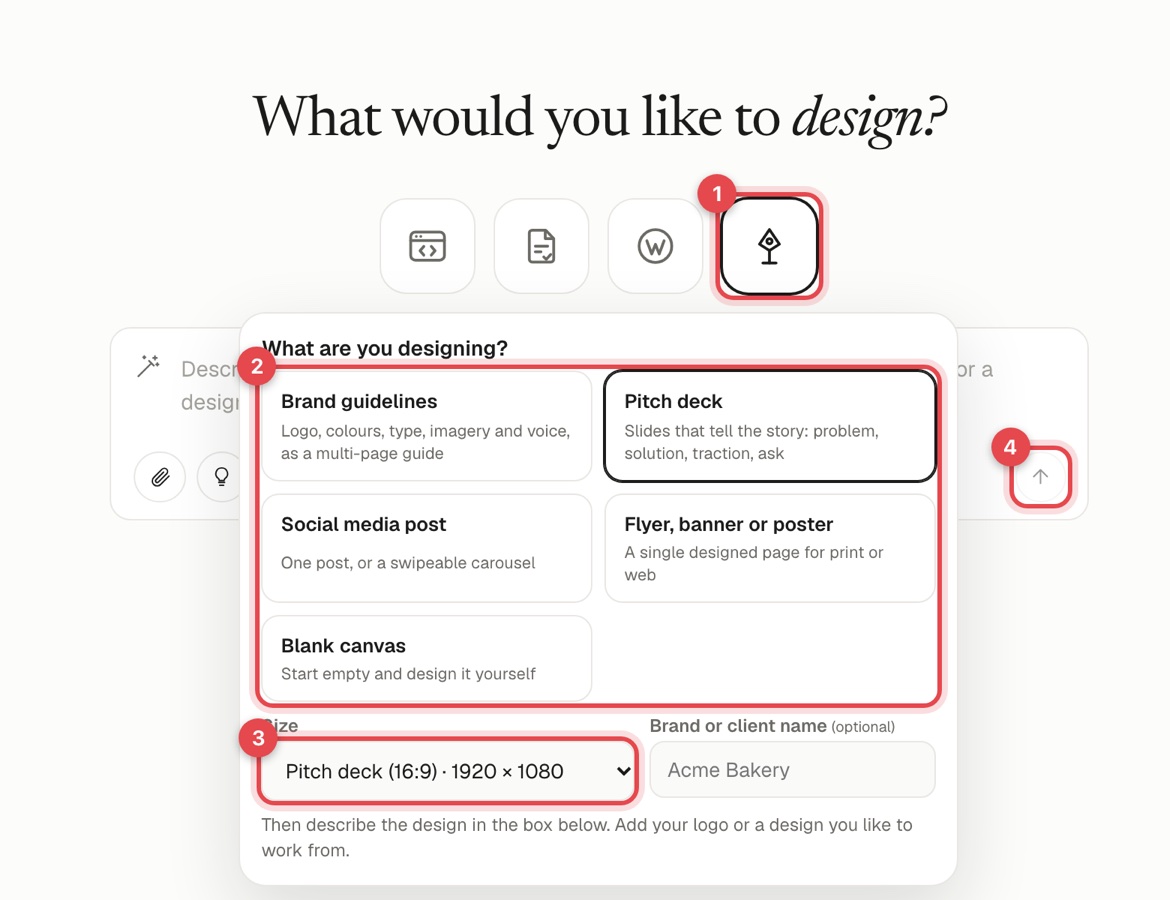
After you choose, the menu closes and a small button under the box (for example Pitch deck · 1920 × 1080) shows your choice. Press it to change it. Blank canvas needs no description: press the arrow to open an empty page.
Or use the Design Studio page#
Open Design Studio in the sidebar for the full page, with all your designs and the same options. The steps below describe that page.
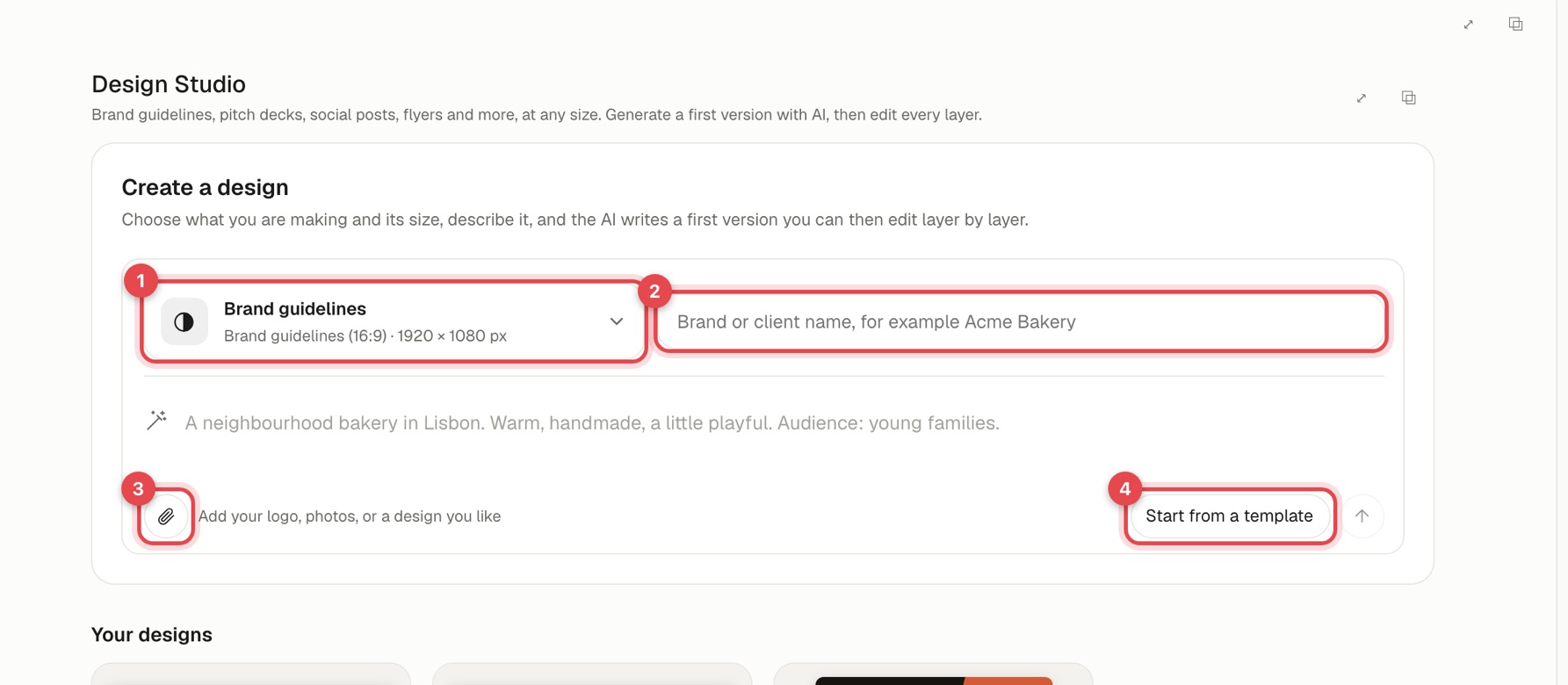
Everything is in one box. At the top is a button (1) that shows what you are making and its size, for example Brand guidelines · 1920 × 1080 px, with a field for the brand or client name (2) beside it. Below are the description, the paperclip (3) and the arrow.
1. Choose what and how big#
Press the button (1). It opens the choices:
- What are you making? Brand guidelines (logo, colours, type, imagery and voice, as a multi-page guide), Pitch deck (problem, solution, traction, ask), Social media post (one post, or a swipeable carousel), Flyer, banner or poster, or Blank canvas (start empty and design it yourself).
- Size. Grouped as Social media, Presentations, Brand & identity, Print, Web & email and Custom size, each with its pixels, for example Instagram post 1080 × 1080, Pitch deck 1920 × 1080, A4 portrait or Open Graph link preview 1200 × 630. A custom size can be anything from 50 to 8000 pixels.
Choosing a kind picks a sensible size for it, which you can change. Press Done, or pick a size, and the choices close.
2. Describe it#
Type the brand or client name, then describe what you want, for example A neighbourhood bakery in Lisbon. Warm, handmade, a little playful. Audience: young families. Add your logo, photos or a design you like with the paperclip (3). Press the arrow to generate.
A progress bar shows the AI working. When it finishes, the design opens in the editor. For a Blank canvas there is nothing to describe: press Create blank design.
Start from a template#
Press Start from a template (4) to begin with a ready-made layout and no AI.
Your designs#
Everything you make is listed under Your designs, where you can open, Duplicate or Delete a design.
Next: Images and brand style and Edit on the canvas.