Publish your site
Put a site live, install a theme on your own WordPress, or download it to move anywhere.
Press Publish at the top right of a project. What you see depends on the kind of project and your plan.
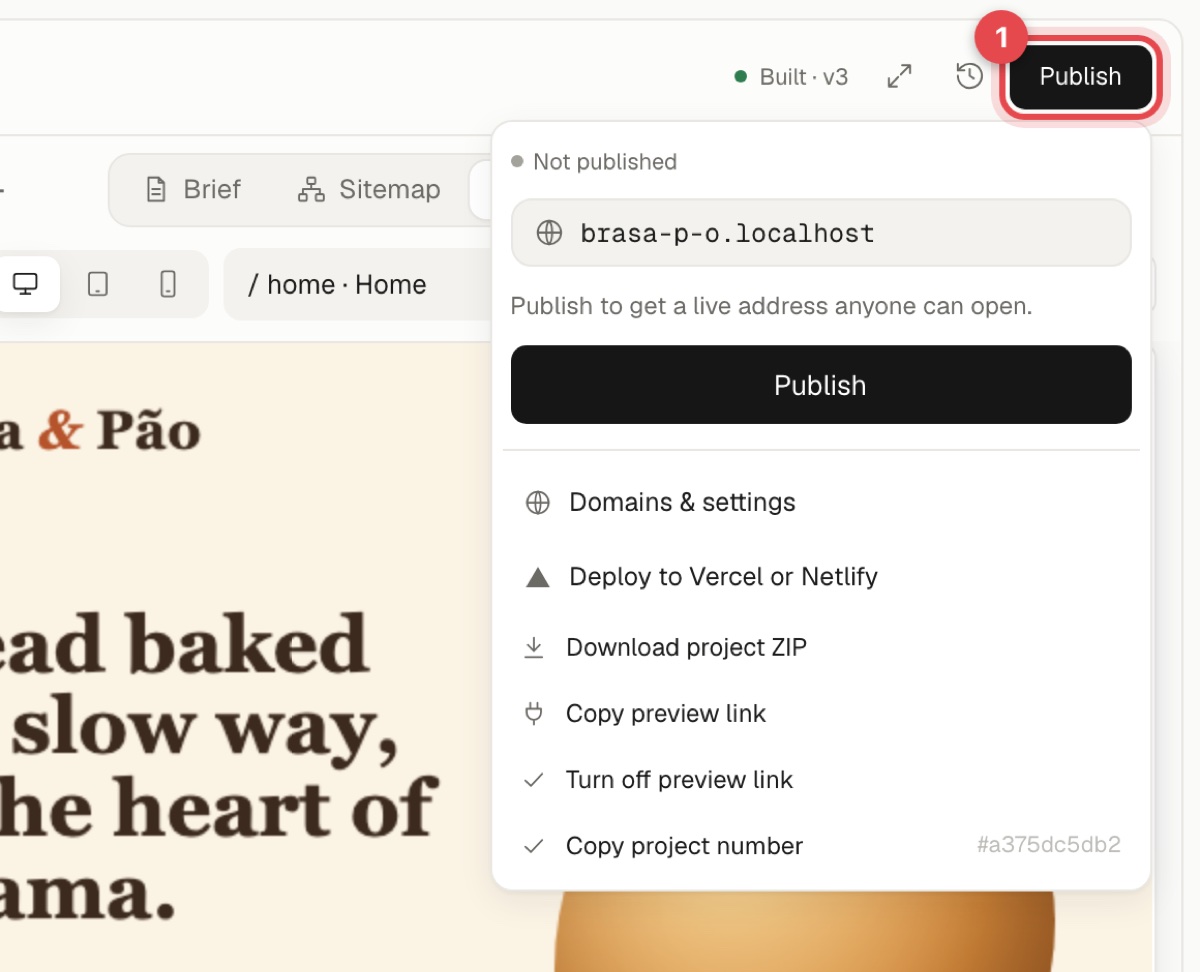
WordPress themes#
- Publish turns the theme into a real, running WordPress site at its own address, with the theme active and an administrator login. The first time can take a few minutes. Publishing a new version replaces the theme and keeps all your content.
- Once live, the menu shows the address, Open WordPress admin, the admin login, and Unpublish. Unpublishing keeps your files and database, so publishing again brings everything back.
- Download site to move it gives you a ZIP of the whole site, including a database file, so you can move to any other host.
- Domains & settings is where you connect your own domain.
Install on your own WordPress site#
If you already host WordPress yourself:
- Open Publish → Connect a WordPress site… (or Settings → WordPress sites).
- Download the connector plugin. Site Haus creates it for you with a secret key already inside.
- In WordPress, go to Plugins → Add New Plugin → Upload Plugin, choose the ZIP, then install and activate it.
- Enter your site's address back in Site Haus.
After that, Install on this site and Install and activate appear in every project's Publish menu. Installing again updates the theme and backs up the previous version. See WordPress sites.
Web apps and sites#
Browser projects and server apps can be published to a Site Haus address, and to your own domain after you prove you own it with a DNS record. Open the Domains tab in the project for the steps. Published server apps run in containers, and sleep when idle on lower plans.
Search (SEO) audit#
When you build a website, the AI writes the search basics for you: a title and description on every page, link-preview tags, one main heading, alt text on pictures, a sitemap, and robots.txt. Before you publish, the Publish menu shows a Search (SEO) score from 0 to 100 for the current version.
- Open SEO from the + tab picker for the full audit: four totals (critical issues, warnings, notices and the score), the checks grouped into Meta Tags, Content, Links, Images, Performance, Security and Crawling, and every issue with the pages it affects and how to fix it. Filter by severity, open a page-by-page table, press Fix this with AI on one issue or Improve everything with AI, and Export the list as a CSV.
- What is missing lists each problem in plain words, with the worst first: a missing description, two pages with the same title, a picture without alt text, a page hidden from search, a
robots.txtthat blocks everything, and so on. - Improve SEO with AI sends that list to the AI, which fixes it in your files as a new version you can undo. Then open the menu again to see the new score.
- The check only reads your files. It never changes anything by itself, and it does not stop you from publishing.
- Apps that build their pages when they run (Next.js, Vue, server apps) can only be checked as far as their plain HTML files go, and the menu says so. Mobile apps and WordPress themes are not checked; for WordPress use an SEO plugin.
Download#
Download theme ZIP is always available. It gives you an installable ZIP of your theme, which you can upload to any WordPress site under Appearance → Themes → Add New → Upload.
Deploy to Vercel or Netlify#
You can also send a project to your own Vercel or Netlify account. See Vercel and Netlify.