Make a video from a project
Pro
Turn a finished website or app into a launch film, product demo, explainer or social ad, with the real page in it.
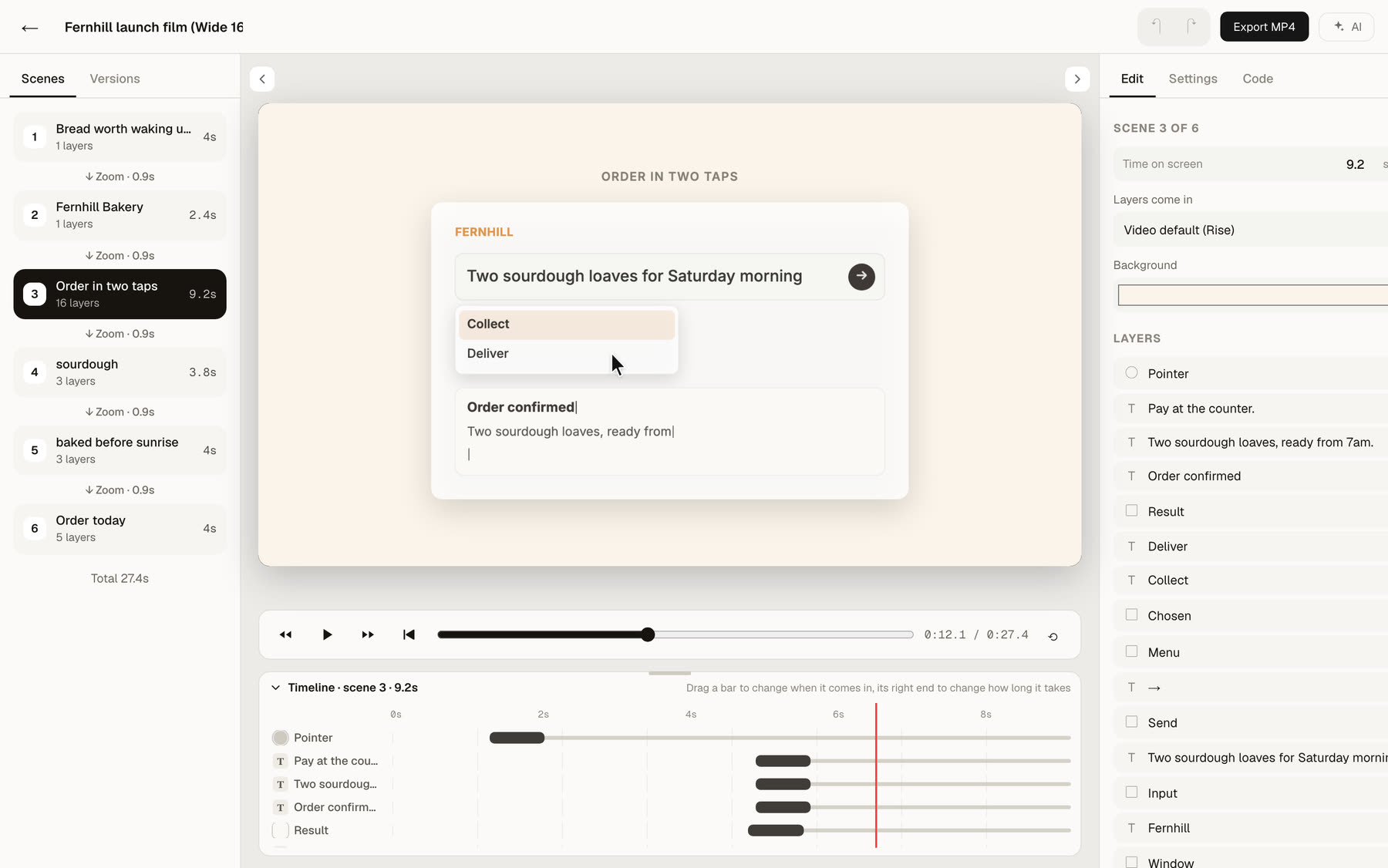
When a project is finished, you often need more than a link: a launch film for the client, a short ad for social media, or a walkthrough that shows what it does. Make a video does this from the project itself. The AI reads what the project says, writes a storyboard, and Site Haus builds the video with the real page in it, in every size you need.
What you can make#
- Product demo. A walkthrough that makes the real page the hero, one idea per scene.
- Explainer. A short story: the problem, the answer, how it works, the next step.
- Social ad. 10 to 15 seconds: a hook, one benefit, a call to action.
- Launch film. A cinematic reveal built for launch day.
Each one can be made wide (16:9), vertical (9:16) or square (1:1), all from one storyboard.
Start from the project#
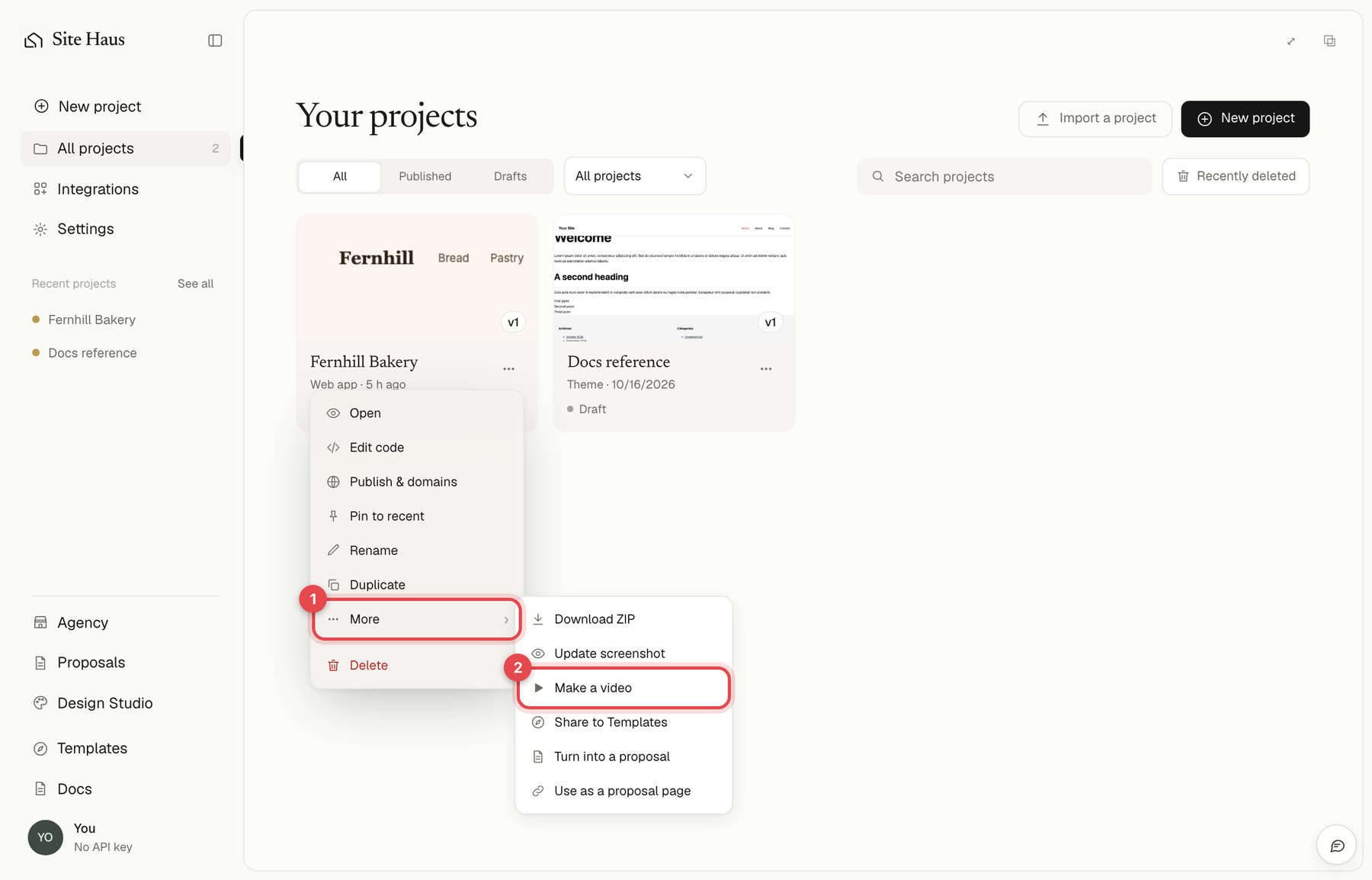
On the project's card, press the three dots, then More, then Make a video. It is on website and web app projects.
Site Haus reads your project first#
Before you choose anything, Site Haus reads every page of the project and works out what it is: what it does, who it is for, its main promise and what it offers. At the same time it takes a picture of each page.
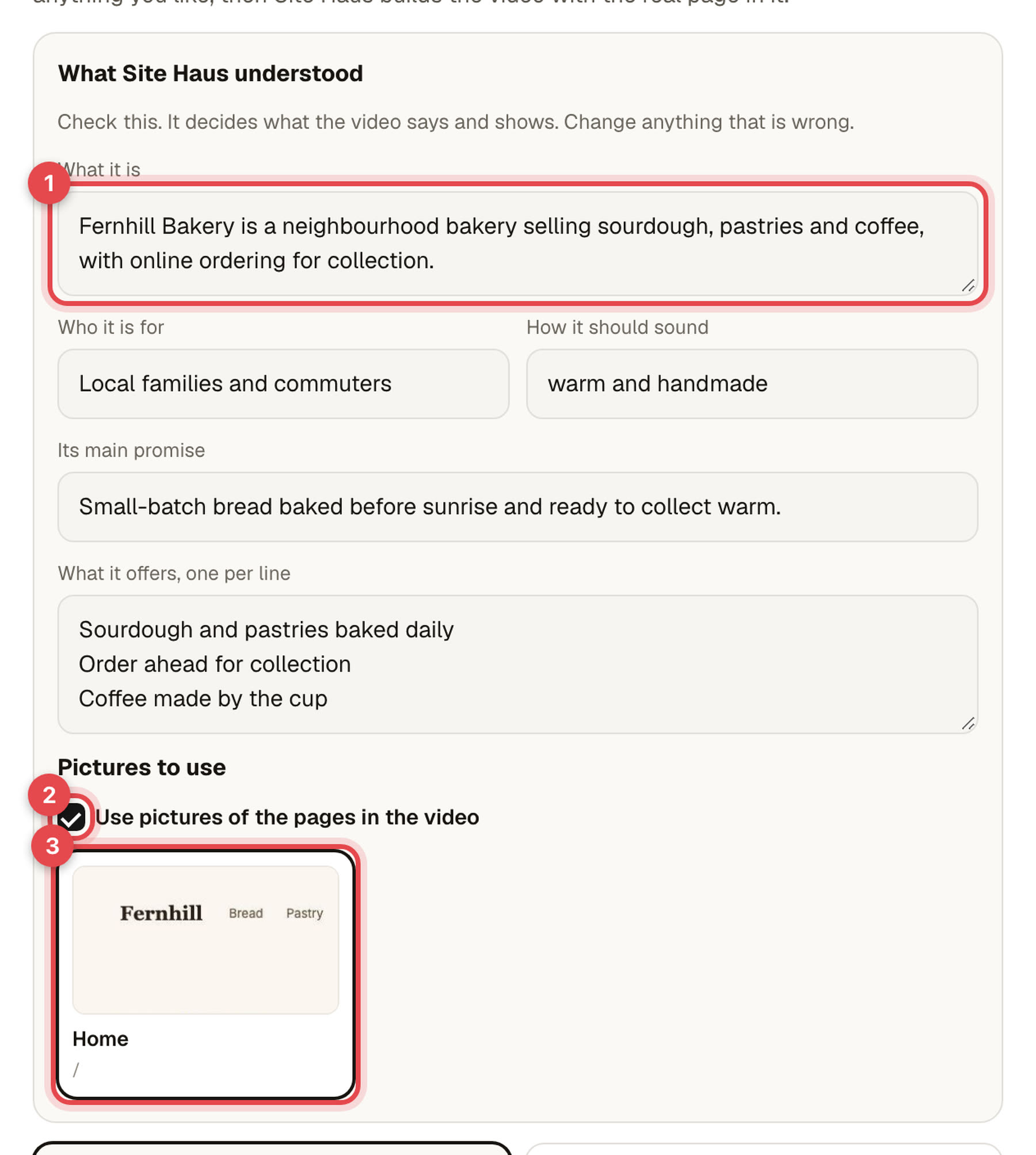
- What it understood. Change any line. If Site Haus got it wrong, fix it here and the storyboard follows.
- Pictures to use. Switch pictures off and the video uses words, colour and product scenes only. Or leave them on and untick any page you do not want shown. Each scene that shows your page can choose which page, and which part of it.
The Write the storyboard button is ready as soon as the project has been read.
Choose the kind, the sizes and the extras#
Pick a kind (1) and the sizes you want (2). The panel at the top is what Site Haus understood, described above. You can add a note about what the video should say, for example who it is for, and the website address to show in the closing scene. Extras (3) are optional and are described below.
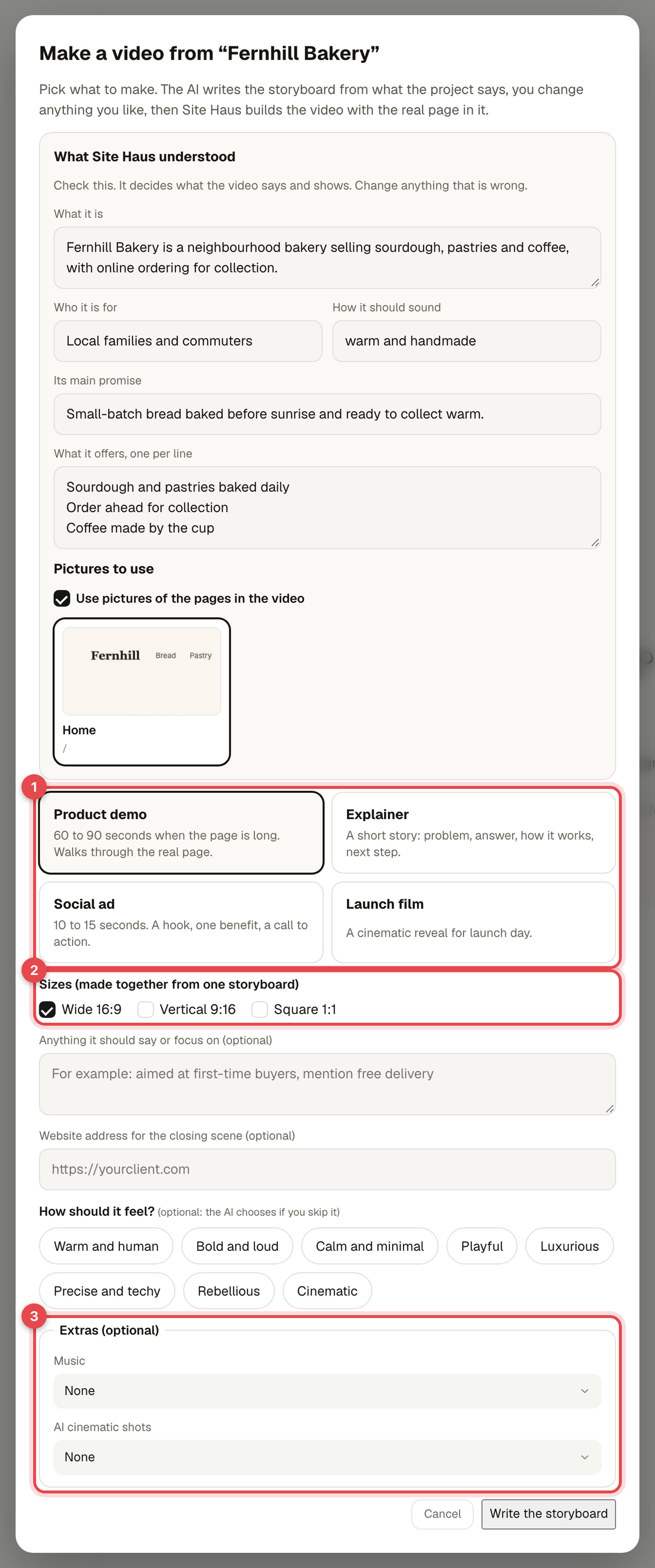
Press Write the storyboard. The AI looks at pictures of your page and at what it says, then writes the scenes. This takes under a minute.
Edit the storyboard#
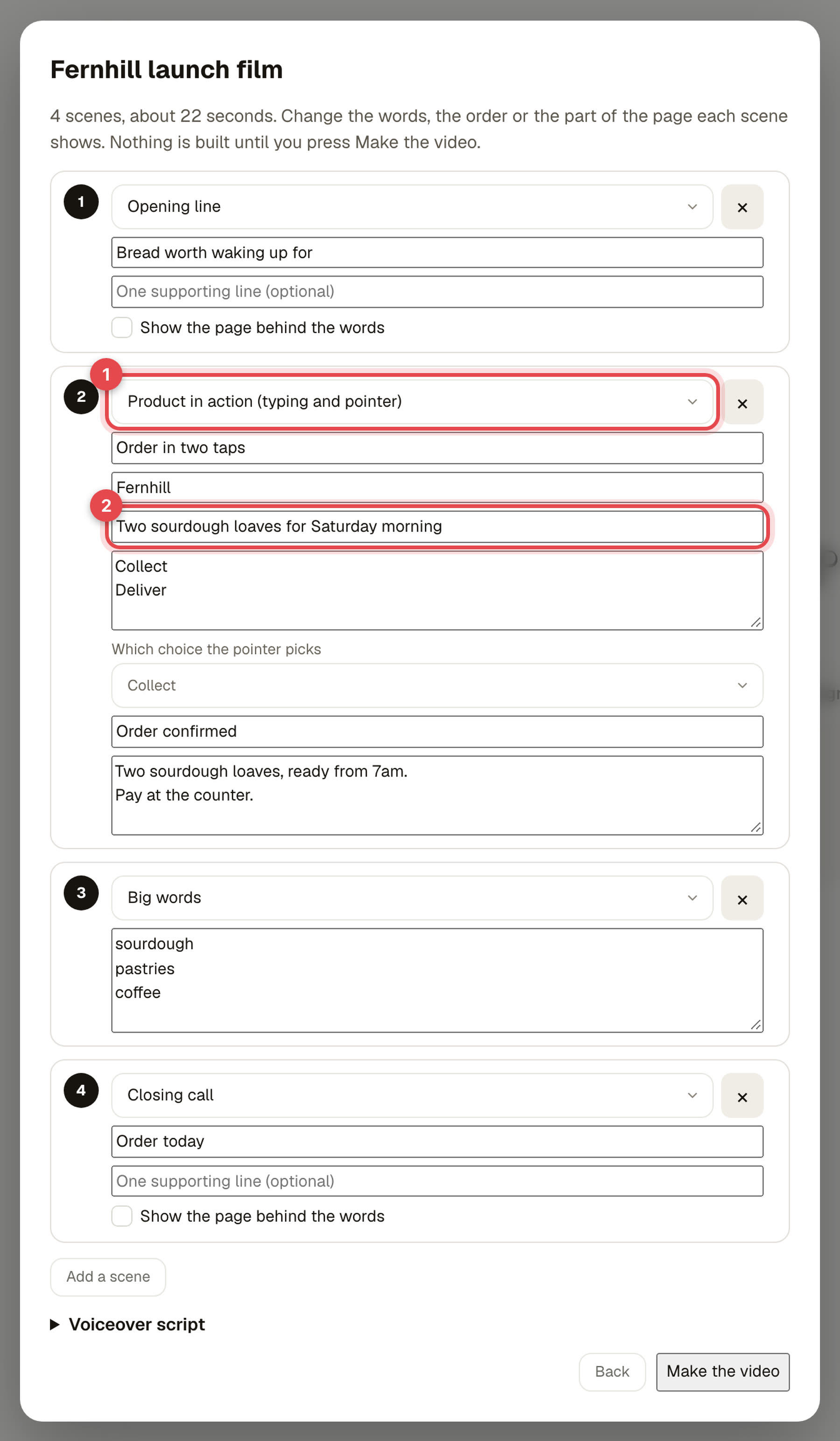
Nothing is built yet. You see every scene as a card, and you can change the words, the order, the kind of scene, and the part of the page it shows. Nothing you change here costs anything.
At the top of the storyboard, Style of the video is the art direction: type, colour, decoration, how the page is shown and how scenes change. The AI chooses one that fits the brand, and you can pick another before anything is made. The six styles are Editorial (paper, a big serif and thin rules), Kinetic (huge capitals on blocks of colour), Tech (dark, a faint grid and a glow), Organic (soft colour and round shapes), Brutalist (hard borders and flat colour) and Luxe (dark, quiet, a fine serif and gold lines). Inside a style, the scenes that show your page rotate through different layouts, so one video is not one template repeated.
The scene types are:
| Scene | What it does |
|---|---|
| Opening line | The hook, in big words over a soft sweep of your brand colour. It can also sit over the page. |
| Brand name | The name as a large wordmark. |
| Shows the page | A real part of your page, edge to edge, with your words over a dark fade. A slider chooses which part. |
| Product in action | The product's interface redrawn and animated, in one of four kinds chosen from how it is used: things offered, one picked (shops, menus, listings), a form filled in (booking, sign-up, quote), a checklist ticked off (tools, plans, steps), or something typed into a box (chat and search tools). A pointer moves and clicks. You can change the kind and every word in it. |
| Big words | Three to five words, one after another. |
| AI cinematic shot | A short film shot made with AI (see below). |
| Statement | A line on its own, with the last words on a coloured pill if you like. |
| Closing call | The call to action, with a button showing your address. |
Each scene has buttons to move it up or down, duplicate it or remove it, and scenes that show your page have a Layout choice (a full picture with words over it, the picture on a card, or a split). Surprise me with another style tries a different style in one press.
Open Voiceover script at the bottom to read the narration the AI wrote for the video. Copy it if a voice artist will record it.
Add music and AI cinematic shots#
Both are optional, and both cost money to make because they use outside AI services.
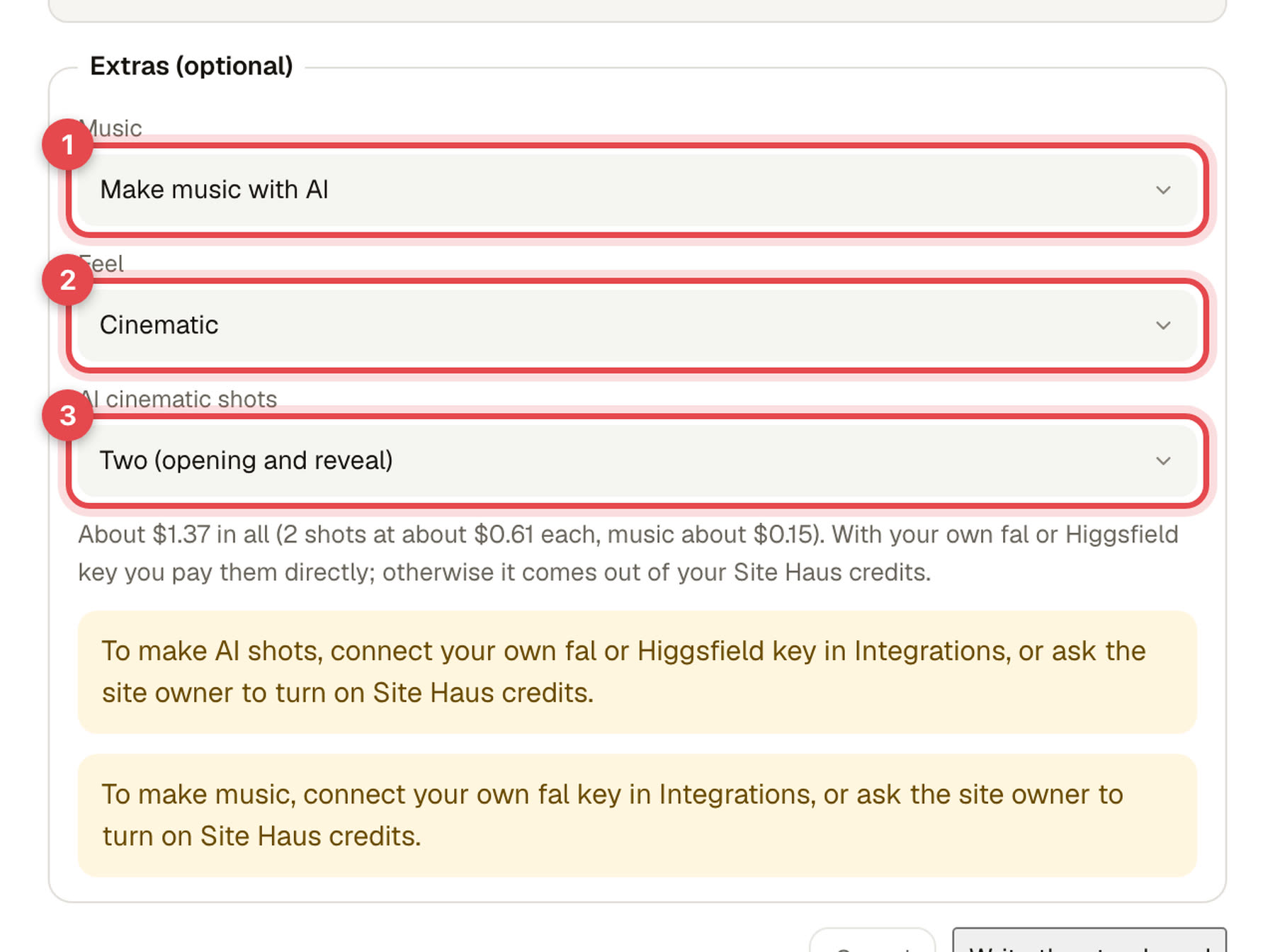
- Music. Choose Make music with AI and a feel (upbeat, calm, cinematic or minimal tech), or Use my own file (MP3, M4A, WAV or OGG, up to 15 MB). The music is added to the video and fades in and out.
- AI cinematic shots. Choose one or two. Site Haus makes a still picture from a description, then a short clip from it, and plays the clip in the video. You can change the description of each shot in the storyboard. A shot is made once and kept, so changing the words around it does not make it again.
The first screen shows roughly what the extras will cost before you start. You pay in one of two ways, the same as every other AI picture and video:
- Your own key. Connect fal or Higgsfield in Integrations. They bill you directly. See AI pictures and video.
- Site Haus credits. If the site owner has turned them on, the cost comes out of your included usage and credits, and only after it works.
Open it and finish it#
Press Make the video. Each size is saved as its own video in Design Studio, and you can open any of them from the list that appears.
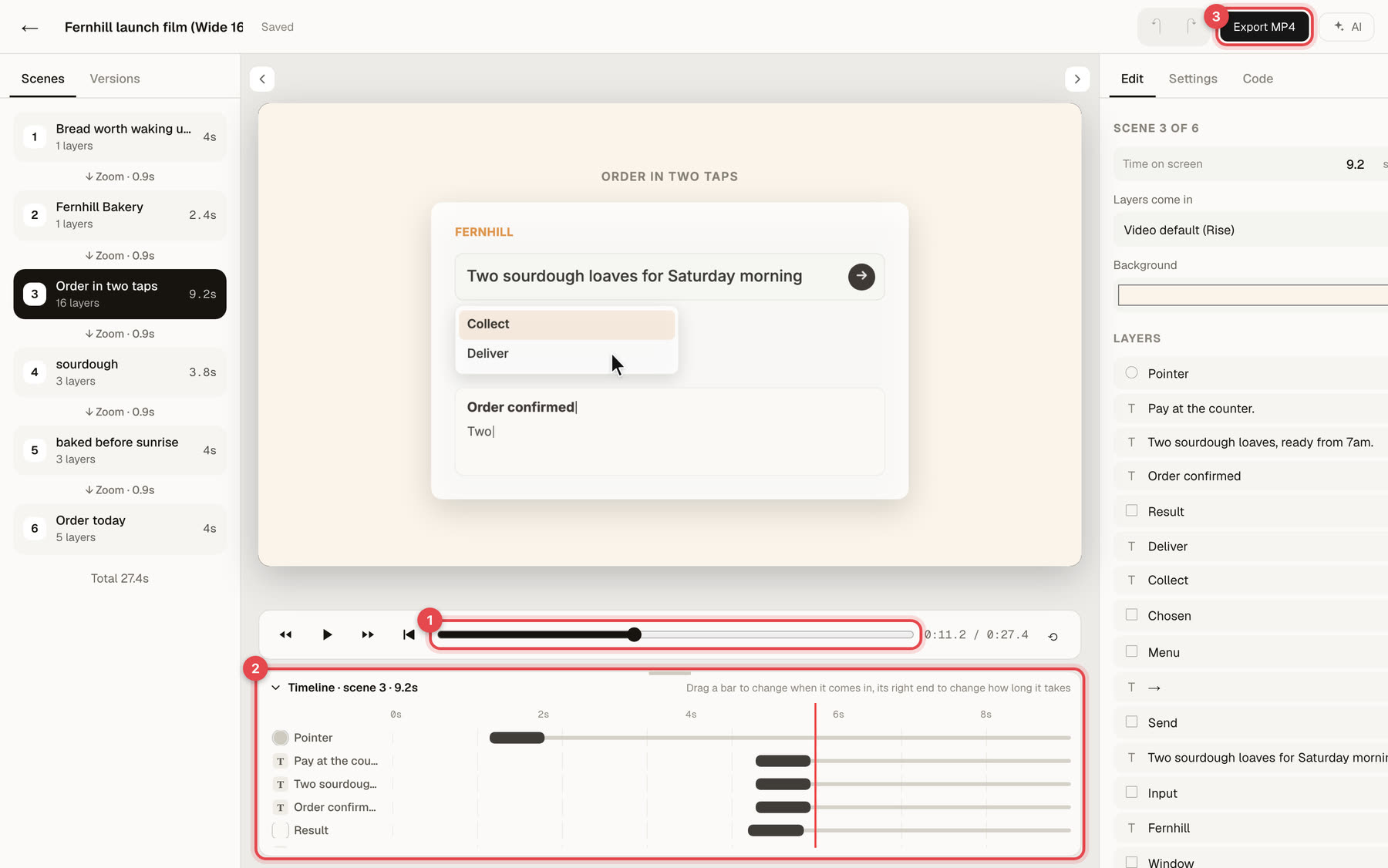
It is an ordinary video, so everything in Motion videos works on it. Retime a scene, change its words, replace a picture, change how scenes hand over, add or change the music, ask the AI for changes, and press Export MP4. The video is made in your browser, so keep the tab open until it finishes. You can also take these videos into After Effects (see Motion videos); the typing and the pointer's movement are not carried across, only the layers.
Tips#
- Give the AI a note. "Aimed at first-time buyers, mention free delivery" changes the whole script.
- Keep a Product in action scene short and real: a prompt a customer would actually type, and a result that would actually come back.
- Make the wide version first. Once you like it, make the vertical and square ones from the same storyboard.
- If a scene is not right, change its type in the storyboard instead of rewriting it.
Explore#
- Motion videos: everything you can do in the video editor.
- AI pictures and video: connect fal or Higgsfield, or use Site Haus credits.
- Preview: look at a project before you make a video from it.