The home box and the / menu
Everything you can start from the home screen: the type icons, the + menu, ideas, and the / menu with skills and shortcuts.
The home screen is a single box. What you type there, and which icon you pick above it, decides what Site Haus makes.
Choose what to make#
Above the box are five icons. Rest the pointer on one for a moment and its name appears.
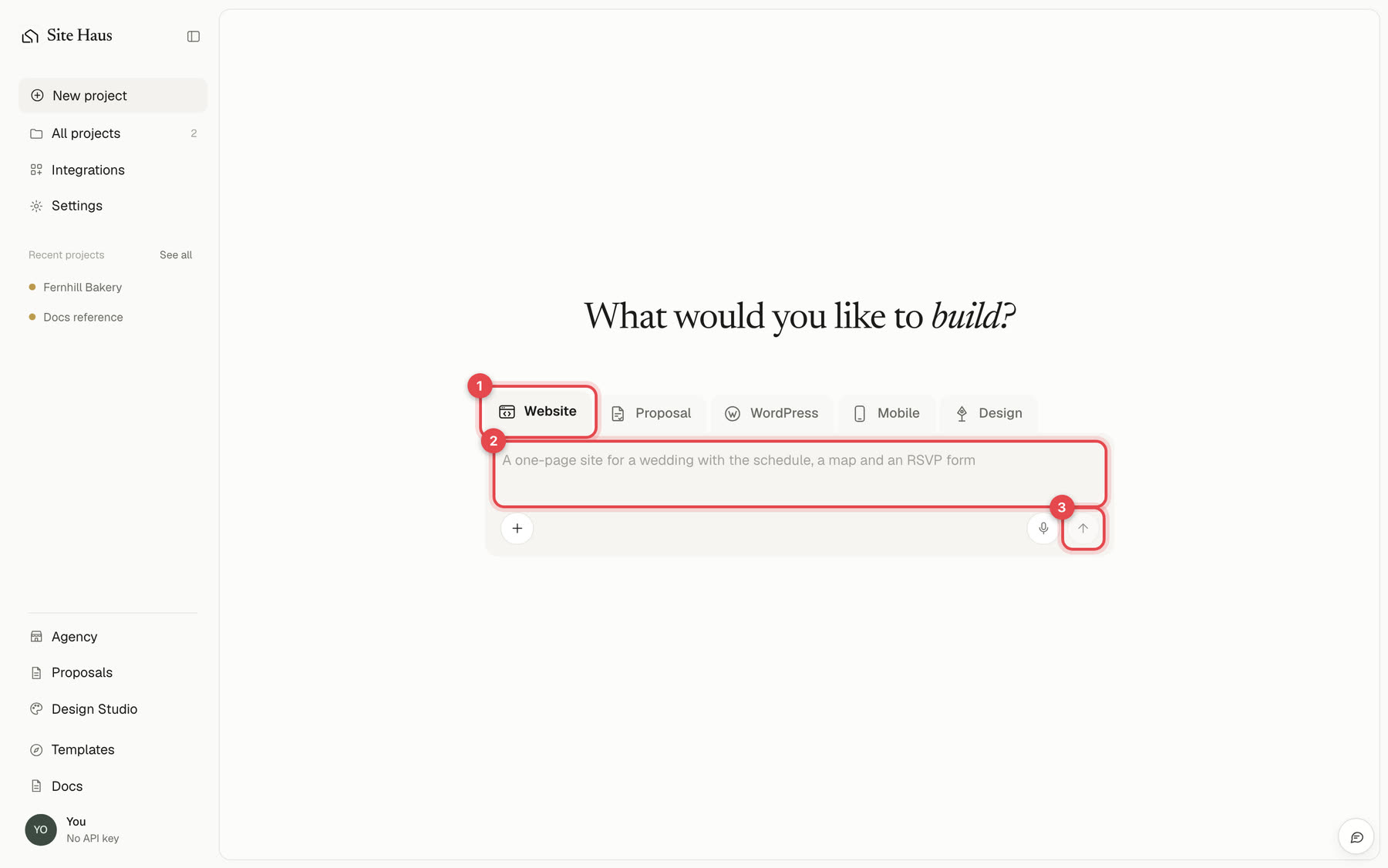
| Icon | What it makes |
|---|---|
| Browser with code | A website or web app, built and run in your browser |
| Document | A client proposal, written with AI (see Write a proposal) |
| W | A WordPress theme (see Build a WordPress theme with AI) |
| Phone | A mobile app (see Build a mobile app) |
| Pen nib | A design in Design Studio: brand guidelines, decks, social posts, flyers and motion videos (see Create a design) |
The heading and the hint in the box change to match what you chose.
The + menu#
Press + at the bottom left of the box:
- Add screenshots or images: pictures of a site you like, a sketch, your logo. See Use images and Figma.
- Give me an idea: puts an idea in the box. A sparkle button then appears beside + for another one. Site Haus remembers the last two ideas so they do not repeat.
- Import project, Figma and GitHub: bring in something that already exists. See Import a project.
The / menu#
Type / in the box and a menu opens under it. It narrows as you type, so /scrol shows Scroll world.
- Start something:
/website,/proposal,/wordpress,/design, and/scroll-world, which opens the Scroll world builder (see Scroll world). Words like/wp,/videoor/slidesfind them too. - Kinds of design:
/motion-video,/pitch-deck,/brand-guidelines,/social-media-postand more jump straight to that kind in Design Studio. - Tools:
/ideas,/import,/figma,/github. - Your skills (for websites and web apps): pick one and the AI loads it for your request. See Use skills when you build.
Use the arrow keys to move, Enter or Tab to choose, and Esc to close.
Chain commands#
Commands can be used back to back. Choose one, then type / again for the next. A command you have chosen shows in blue, so you can see it is selected. A /word that is not a command stays plain.
/animate /break-ui make the pricing cards feel alive on hoverYou can chain up to three skills.
Make a Motion video from here#
Type /motion, choose Motion video, describe the video and send. It opens in the motion editor when it is ready. See Motion videos.