Preview your site
Check desktop, tablet and phone, move between pages, and share a preview link.
The preview on the right is your site running for real. For a WordPress theme, a full WordPress runs inside your browser, with the theme already active and demo content in place. Nothing you build there touches a live site.
Check every screen size#
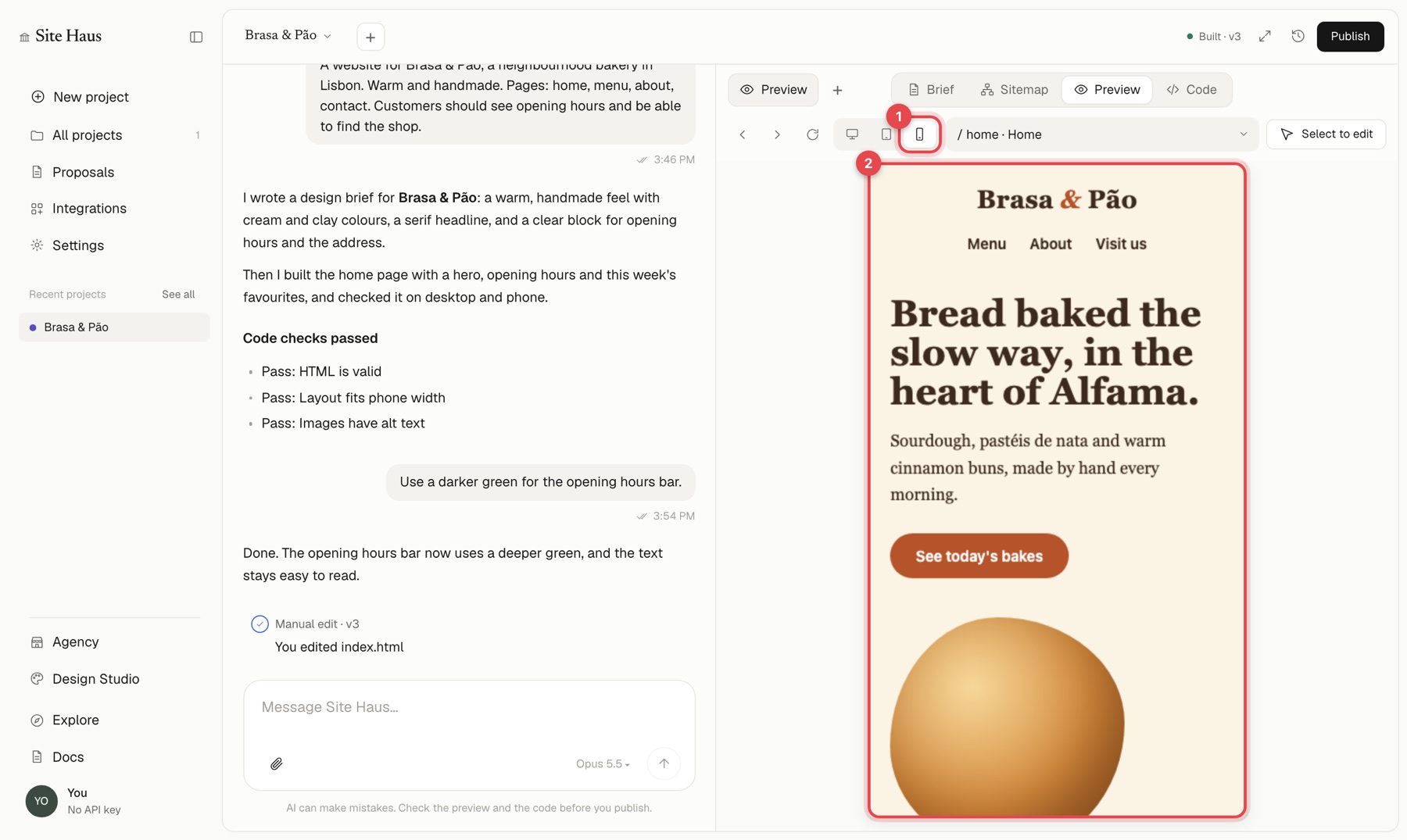
Above the preview, switch between desktop, tablet and phone. Look at all three before you share anything: layouts often need a small fix on the phone.
Move between pages#
The page picker next to the device buttons lists the pages of your site. Pick one to see it. The back, forward and refresh buttons work as in a browser.
Pictures in the preview#
Pictures in your project show in the preview, including big photos and pictures from web addresses such as Unsplash. If a picture added by the page's own code fails to load, the preview fetches it and shrinks it to fit. Switch between Preview and Code with the switch at the top left; the highlight glides to the one you choose.
Share a preview link#
Open Publish and choose Copy preview link. Anyone with the link can look at your project without an account. Turn off preview link stops the link working. It is a good way to get a client's reaction before the site is live.
WordPress preview notes#
- The preview has no internet access by default, so theme code cannot call out. If a theme needs plugins from WordPress.org, a banner offers Allow internet and install.
- The preview remembers its content in your browser. If you want a clean start, use Erase saved WordPress data in the preview's menu.
- Plugins bundled inside a theme as ZIP files are not imported for safety. Install those from their vendor on your real site.