Send and track
Pro
Share the private link, see when it is opened, and handle the client's answer.
Send it#
When the proposal is ready, use the buttons at the top of the editor (PDF, More and Send):
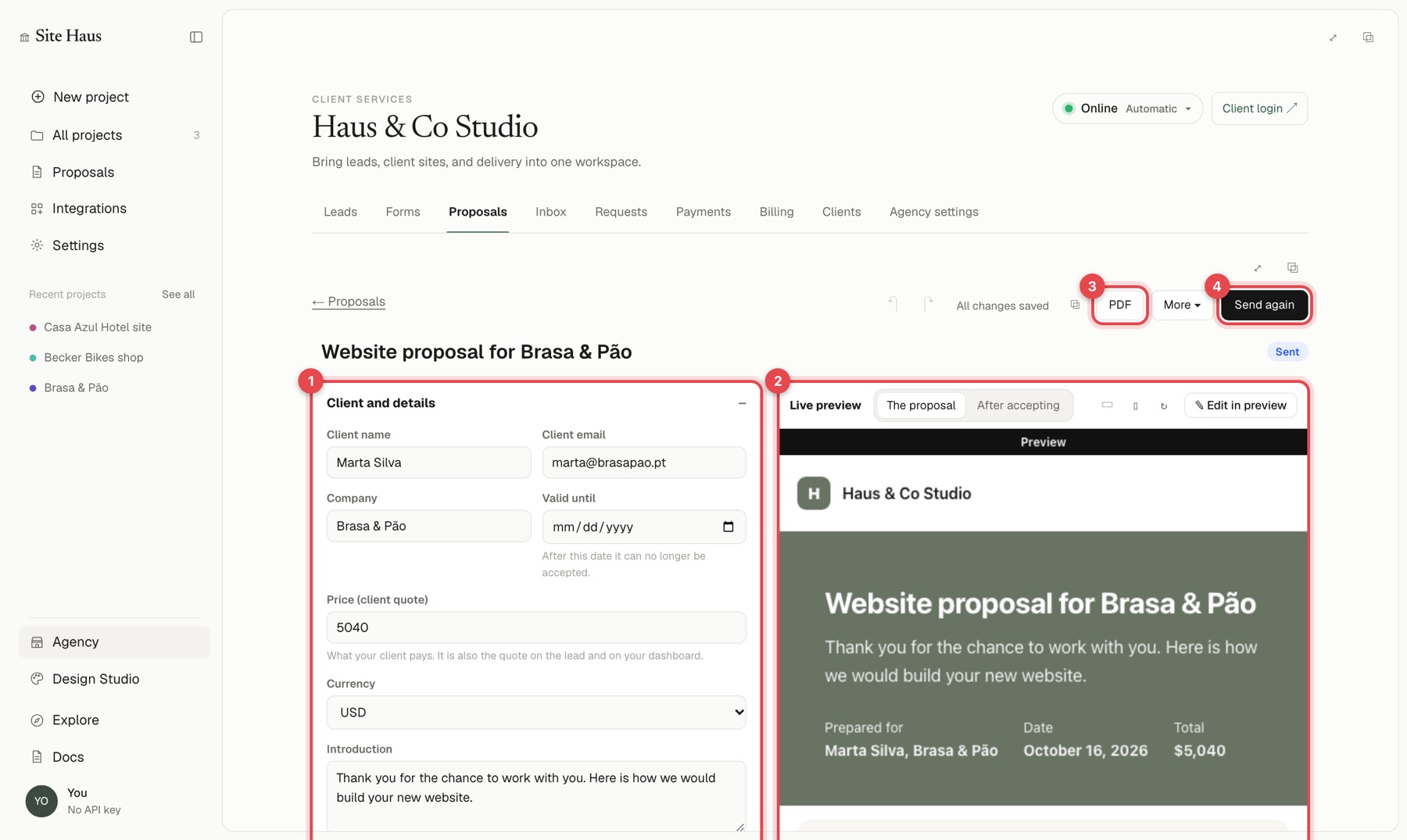
- Send writes an email to the client with the link. Add a subject and a short note if you like. After the first send the button reads Send again.
- More holds View link, Download PDF, Copy the client link (which marks the proposal as sent so you can paste the address into your own email or chat), Save as my template, Share to Templates, Download as template file, Duplicate and Delete proposal.
- PDF saves the proposal as a PDF file.
You can also open the client's version in a new tab to see exactly what they see.
Statuses#
Every proposal shows a status so you can see where things stand:
| Status | Meaning |
|---|---|
| Draft | You have not sent it |
| Sent | The link has been shared |
| Viewed | The client opened it |
| Accepted | The client accepted |
| Changes | The client asked for changes |
| Declined | The client said no |
When the client answers#
On the proposal page the client can accept, ask for changes (with a message) or decline. Their answer shows in your list, and you can open the proposal to read the message. If they asked for changes, edit the proposal and send the link again.
After they accept#
Accepting can lead to a payment page and, if you use them, a client space. See Get paid and Clients and the portal.
Revise an accepted price#
Once a proposal is accepted it is locked. If the scope grows, use Edit price (revise the accepted price). You must give a reason, which the client sees next to the new price. Press Send revision to client and they confirm the new amount.
Organise#
Use folders and the star to keep proposals tidy, archive old ones, search by title, client, email or folder, and Duplicate a proposal to start a similar one.