Tickets and inbox
Pro
Handle change requests from clients and keep email conversations in one place.
Tickets#
Clients send requests from their client space: a change to a page, a new feature, a question. They show up in Agency → Tickets, with a count on the tab for new ones.
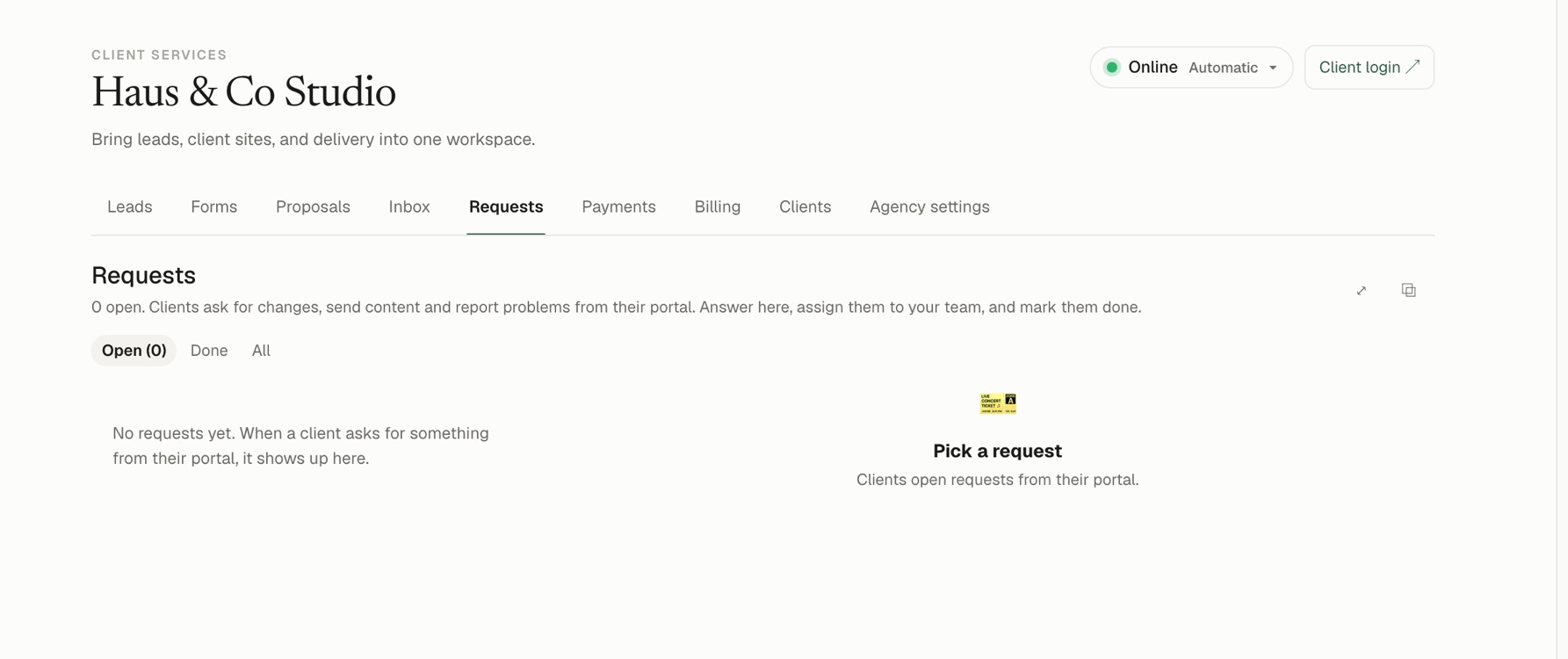
The list shows each ticket's client, type, priority, status, when an answer is due and who it is assigned to. Filter by Open, Resolved or All, search, and sort. Open one to get its own page.
The ticket page#
- Conversation (left). The whole thread. The Activity tab shows messages and changes together, Emails only the messages, Comments only your private comments, and Analytics how fast you answered. Newest first or oldest first.
- Reply to the client. Write in the box and press Send (or Send & resolve). You can add CC and BCC addresses to send a copy by email. After you press send there are a few seconds to Undo.
- Private comments. Switch the box to a comment for your team only. The client never sees it. Mention a teammate with @, and react to a comment with an emoji.
- Resolve and reopen. Resolve marks it done and tells the client; Reopen puts it back. If a client replies to a resolved ticket it reopens by itself.
- Details (right). Ticket type, priority, customer, team, assignees (one or more), tags, and an Escalate to manager switch that marks it urgent. The panel also shows when the first reply and the fix are due, and the client's details.
- Parent and sub-tickets. Set a Parent ticket to group related requests. The parent lists its Sub-tickets, and each opens with a click.
- Resize. Drag the line between the conversation and the details to give either more room. Double-click it to reset. Your choice is remembered in this browser.
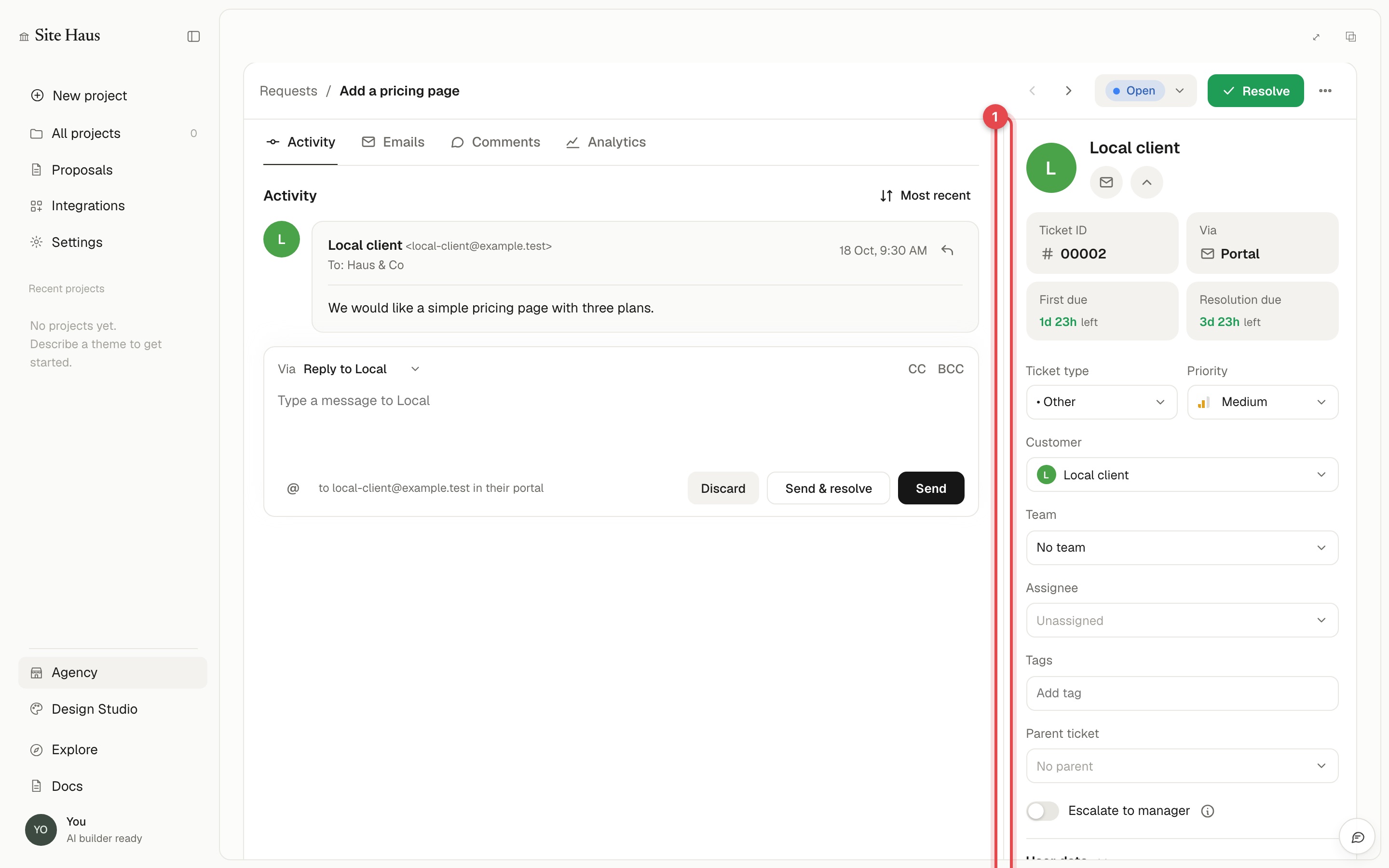
Every change (status, priority, assignee, tags) is written into the activity so you can see who did what and when.
Requests that started as an email#
A request can also begin as an email from a client. These show From an email: open the conversation at the top of the ticket page, which takes you to the original email in your Inbox. See Email and requests below for how they are made.
Inbox#
Agency → Inbox shows email conversations with your leads and clients. It uses the mailbox you connect in Integrations. If you have not connected one, email still goes out through Site Haus with your address as the reply-to.
See Email for how to connect a mailbox.
Working in a conversation#
- Filters. Open, Mine, Unassigned, Starred, Closed, All and Spam sit above the list, with a count on the ones that need you. Search looks through names, subjects and the words in the emails.
- Chat view. Switch a conversation to Chat view to read it like text messages. Your reply box can be dragged taller or shorter.
- Assign and close. Give a conversation to someone on your team, mark it Open or Closed, star it, mark it unread, or report it as spam.
- Notes. Add an internal note that only your team sees.
Trash#
Use Move to Trash on a conversation to take it out of the list without losing it. Open the Trash tab to see what is there, and press Restore to bring a conversation back or Delete forever to remove it for good. Empty Trash clears the lot. Conversations in Trash are deleted for good after 30 days, and a new reply from the sender brings a conversation back to the inbox.
Attachments#
Attachments on an email are kept when the email arrives.
- Pictures show as small previews. Click one to open it full size in a new tab.
- PDFs open in a new tab so you can read them, and there is a ↓ next to the name to download.
- Other files (documents, spreadsheets, zip files) download with their own name. They are never opened inside Site Haus.
- Very large attachments, and attachments on email that arrived before attachments were kept, show their name but cannot be opened here. Open those in your own mailbox.
Email and requests#
When a client emails you, the email can become a request under Tickets, so it is tracked with the others.
- By hand. Open the conversation and press Make a ticket. A ticket always belongs to a client, so if the sender is not one of your clients yet, Site Haus asks whether to add them as a client first (they are not emailed about it).
- By itself. In Agency → Settings → Email and requests, choose Open a request for it automatically. From then on every new email from a client opens its own request. It is off by default.
When an email becomes a request:
- The request holds the client, the subject and the client's words (without the quoted older emails).
- The conversation in your Inbox closes and gets a note with a Request # button that opens the request. The conversation is the record of the email; the request is where you do the work.
- Later emails from the client in the same conversation are added to the request, and the conversation stays closed.
- Your replies from the request go to the client as before.
Choosing which emails count#
In Agency → Settings → Email and requests you can keep some email out of requests:
- Never open a request for these senders. One per line. Use an address (
[email protected]), a domain (newsletter.example.com, which also covers its subdomains) or a pattern with*(no-reply@*). - Skip when the subject contains. Words or phrases, one per line, such as
out of office. Capital letters do not matter. - Skip no-reply, notification and newsletter senders. On by default.
An email that a rule skips stays open in your Inbox with a No request: skipped by a rule label. Hover over it to see which rule it was. You can still press Make a request on it yourself.
Use Try it in the same card to check an address: it tells you whether an email from that sender would become a request with the rules you have saved, and why.
Rules apply to new email from now on. Email that is already in your Inbox is not turned into requests.
Turn a ticket or an email into work#
Open a ticket and click Make a task to add a task for your team that comes out of it. See Tasks.
To turn an email into a ticket, see Make a ticket above.