Connect your own AI
Use your own Claude, ChatGPT, Gemini, Cursor, Codex or another MCP agent to edit your projects, free and unlimited on every plan.
Site Haus has a built-in AI, which uses your plan's allowance and credits, or your own Anthropic API key if you save one in the same panel. You can also connect your own AI app and let it edit your projects with the same tools. That costs nothing in Site Haus, on any plan.
What it can do#
A connected AI can create projects, read and change files, run the same code checks, look at screenshots of your preview, compare versions and restore an earlier one. Every change is a normal version, so you can undo it.
On Pro and Power it can also read your agency: leads, forms, clients, requests, inbox, payments and brand identity, without changing anything. See Use your own AI with your agency.
It cannot run code on your computer, and it only reaches your projects after you approve it.
Connect an agent#
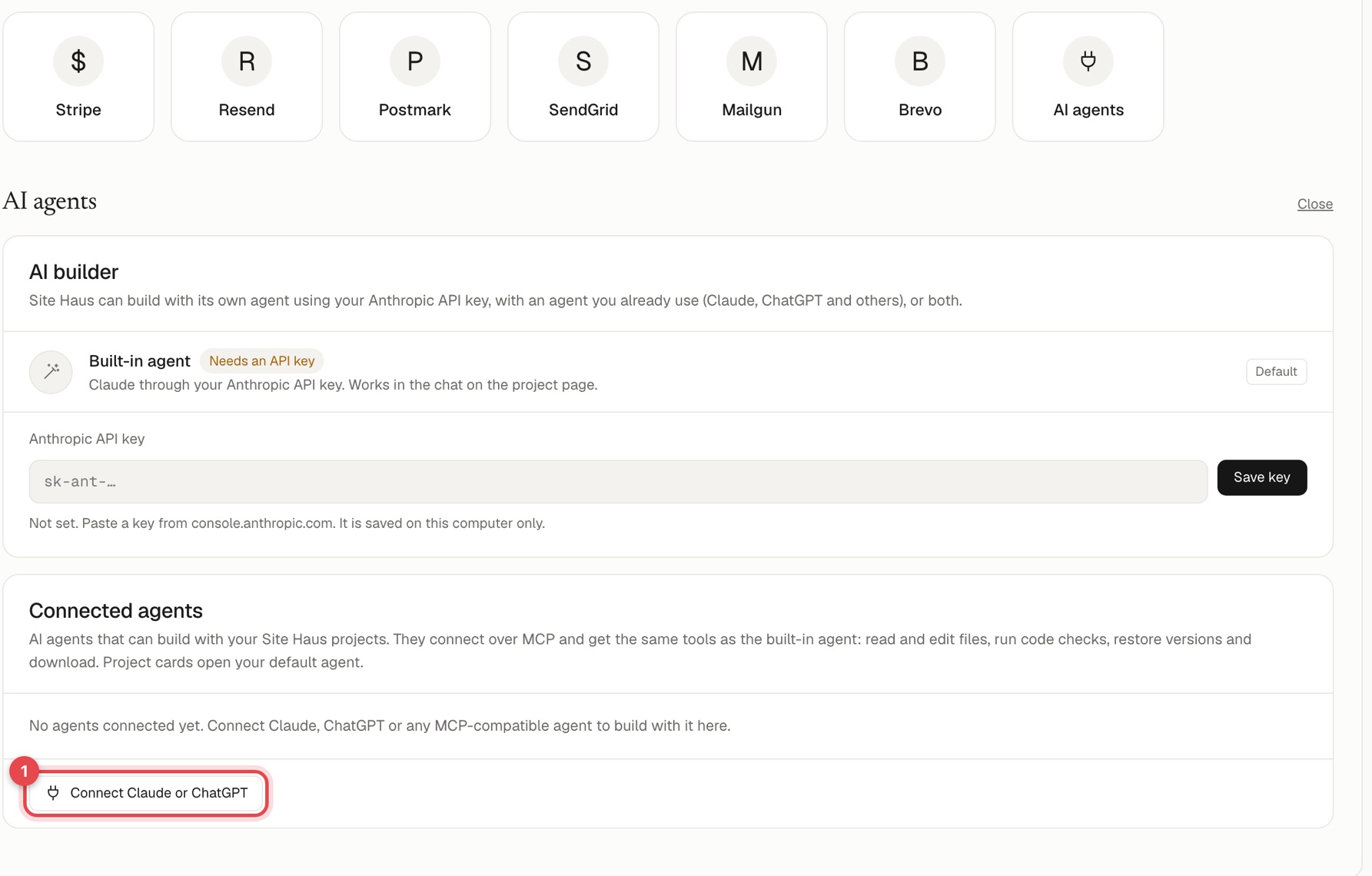
- Open Integrations and choose AI agents (Connect agents).
- Under Connected agents, press Connect an AI agent.
- Pick the app you use: Claude, ChatGPT, Gemini, Grok, Claude Code, Codex, Cursor, Claude Desktop or Other (token). The dialog shows the exact steps and the address to copy.
- When the AI connects, approve it in Site Haus. Nothing connects until you approve it.
For tools that need a token, create an access token in the same dialog. Keep it private: anyone with it can edit your projects.
Which agents work#
Any agent that supports MCP (the standard way to give an AI tools) can connect. These have their own tab with the exact setup, filled in with your address and token:
| Agent | How it connects |
|---|---|
| Claude (claude.ai) | A custom connector: paste the address and approve it. Needs a Claude plan that allows connectors. |
| ChatGPT | A custom connector in developer mode: paste the address, choose OAuth and approve it. Needs a ChatGPT plan that allows connectors. |
| Claude Code | One command, with an access token. |
| Gemini CLI | One command (gemini mcp add), or an entry in settings.json, with an access token. |
| Codex | An entry in ~/.codex/config.toml that reads the token from an environment variable. |
| Cursor | An entry in ~/.cursor/mcp.json or .cursor/mcp.json, with an access token. |
| Grok | Through the xAI API or SDK, as an MCP entry in the tools of a request. |
| Claude Desktop and others | The mcp-remote bridge, or Other (token) for any client that supports Streamable HTTP. |
Gemini#
The Gemini CLI is Google's command-line agent. In the Gemini tab press Create access token, then run the command it shows, for example:
gemini mcp add --transport http --header "Authorization: Bearer YOUR_TOKEN" site-haus https://your-site/mcpRun gemini mcp list to check it connected. Gemini then has the Site Haus tools, and the work runs on your own Google account or API key. The Gemini app on gemini.google.com does not have a place to add your own connector, so use the CLI.
Grok#
xAI documents MCP for developers using the xAI API and SDK. In the Grok tab, create a token and add the entry it shows to the tools of a Responses API request, with type set to mcp, your Site Haus address as server_url, and the token as authorization. The address has to be reachable from the internet. There is no way we know of to add a custom connector in the Grok app or on grok.com.
Codex and Cursor#
Codex: add a [mcp_servers.site_haus] entry to ~/.codex/config.toml with your address and bearer_token_env_var, and set that environment variable to your token. Cursor: add a site-haus entry with url and an Authorization header to ~/.cursor/mcp.json. The tabs show both, ready to copy.
Any other agent#
Choose Other (token), name it, create a token, and give the agent the address and the header Authorization: Bearer YOUR_TOKEN. Any client that supports Streamable HTTP will work.
A connected agent can do the same things whichever one it is, and its changes show in your project as normal versions. You can connect up to 20 agents, and Disconnect stops one at once.
What to type#
Once your AI is connected, you ask for things in plain words. Say what you want clearly: the AI chooses the kind of project from your words, so naming it gets the right one.
| You want | Say something like | What gets made |
|---|---|---|
| A website or landing page | "Make a landing page for a bakery with a menu and an order button." | A website that runs in the browser. Nothing to install. |
| A web app with logins or a database | "Build a booking app where customers sign in and see their appointments, with a database." | A server app (Node and Express by default). Name another stack to choose it: Next.js, Vue, Flask or Django. |
| A WordPress theme | "Build a WordPress theme for a barber shop." | A real WordPress theme. Say WordPress or theme; without it you get a website. |
| A mobile app for iPhone and Android | "Create a mobile app with Expo: a habit tracker with a daily checklist and streaks." | An Expo (React Native) app. Say mobile app, iPhone and Android app, React Native or Expo. |
| A copy of your own website | "Import https://example.com into Site Haus and rebuild it." (add the whole site to read up to 40 pages) | The site's pages, text, pictures, colours and fonts, rebuilt as an editable project. Only for sites you own or may copy. |
| A client proposal | "Write a proposal for a dental clinic website redesign: $4,500, six weeks, 50% deposit." | A proposal in Agency (Pro and Power). |
Then keep going in the same chat: "change the accent colour to teal", "add a pricing section", "add a settings screen with a dark mode switch". Each change is a version you can undo, and you can ask the AI to check the code and to restore an earlier version.
If you got the wrong kind: say "Turn this into a mobile app" (or "turn this mobile app into a website"). Your AI makes the other kind as a new, linked project and leaves the first one as it is, and you can switch between them in Site Haus. If your AI does not know how, ask it to use the convert_project tool, or disconnect and reconnect the connector so it reads the newest tools.
Build a mobile app from your AI#
- In your connected AI, ask for it: "Create a mobile app with Expo called Habit Tracker. It has a daily checklist, a streak counter and a calm dark mode." The AI sets the project up as an Expo app and writes the screens.
- Keep asking for changes in the same chat. The AI writes React Native (not HTML), keeps screens in
src/screens/and components insrc/components/, and runs the code check when it finishes. - Open the project in Site Haus and press Start app. The app runs in a phone-shaped preview. The first start installs the packages and takes a few minutes. Your AI cannot press this button itself.
- When you like it, ask your AI to publish it ("publish it") or press Publish in Site Haus. That puts the web version of the app on its own address. See Build a mobile app.
Building the iPhone and Android versions for the App Store and Google Play is not available yet.
Other things you can ask#
- "List my projects" and "open the Bakery site".
- "Show me the preview", to look at a screenshot of how it looks now.
- "What changed in the last version?" or "go back to version 3".
- "Download this image and use it as the hero picture", for pictures at a public link.
- "Export the WordPress theme as a ZIP".
- "Publish it", which puts the latest version live and gives you the address.
See what you save#
Edits made through your own ChatGPT or Claude cost nothing in Site Haus. Settings → Usage shows how much you kept compared with the built-in AI.
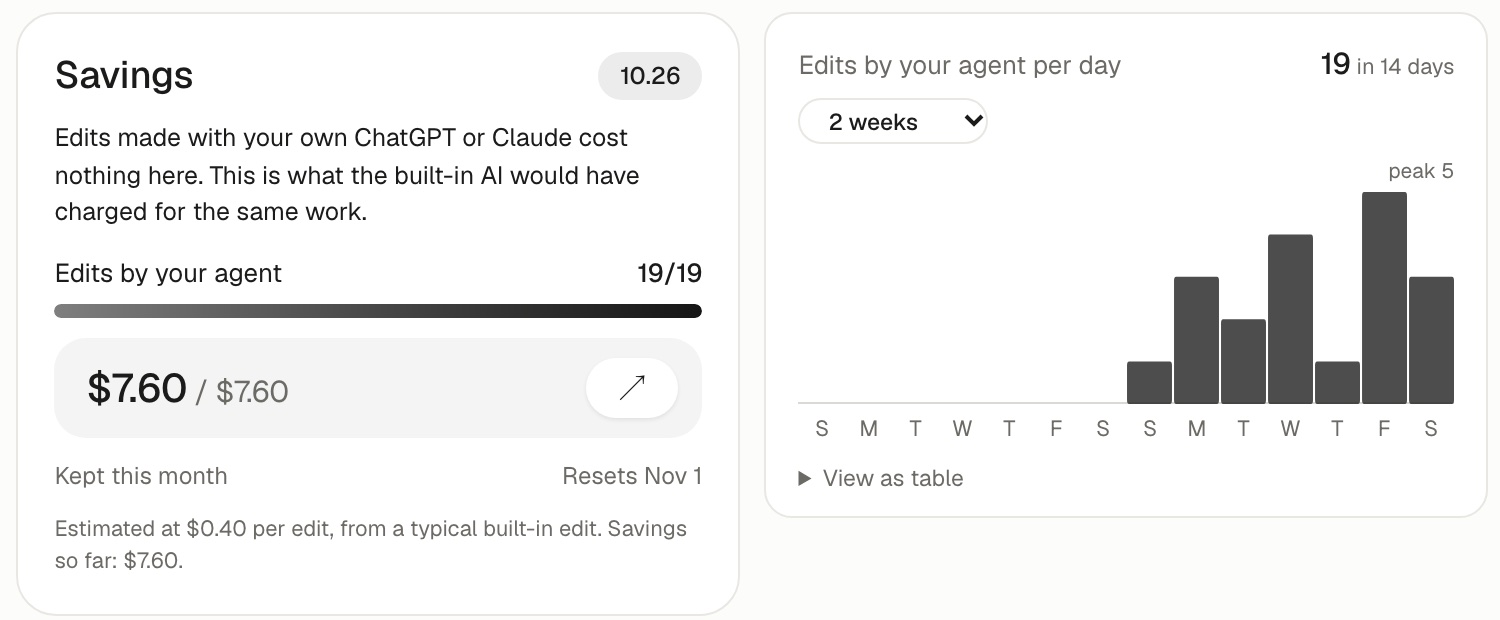
- Savings shows the edits your agent made this month, the share of all your edits that is, and the dollars you kept out of what the same work would have cost on the built-in AI.
- The second card charts your agent's edits per day, with the day named under every bar. It shows two weeks by default; the small menu at the top lets you pick 1 week, 2, 3 or 4 weeks, and remembers your choice. Use View as table under it for the exact numbers. The note on the Savings card also says how this month compares with last month.
- The cost of an edit is an estimate: your own average for a built-in edit once you have used it a few times, otherwise the average built-in edit on Site Haus, otherwise a typical figure. Each edit keeps the estimate it was given, so old savings do not change when prices do.
Skills#
Your connected agent can also read Site Haus's written skills for animation, mobile polish and more. It has two tools for this, list_skills and get_skill. See Use skills when you build.
Disconnect#
Remove an agent in Integrations and its access stops at once.
Chat beside your preview#
Choose your connected AI as the builder, then send a message from the Site Haus message box (or pick Chat in ChatGPT beside this in the project menu). Your AI chat opens in a small window on the right side of your screen, with your request already typed in. Your project preview stays on the left and updates as the AI makes changes. Press send in the AI window to start. If your browser blocks the small window, allow pop-ups for Site Haus, or the chat opens in a new tab instead.