Your first project
Build, check and change a small website from start to finish.
This walk-through builds a simple site for an imaginary business and shows the loop you will use for everything: describe, look, adjust.
1. Describe what you want#
- On the home screen, choose the first icon, Website or web app.
- In the box, write a short description. Say who it is for and what it should do. For example:
A website for Brasa & Pão, a neighbourhood bakery in Lisbon. Warm and handmade. Pages: home, menu, about, contact. Customers should see opening hours and be able to find the shop.
- Press the arrow to send it.
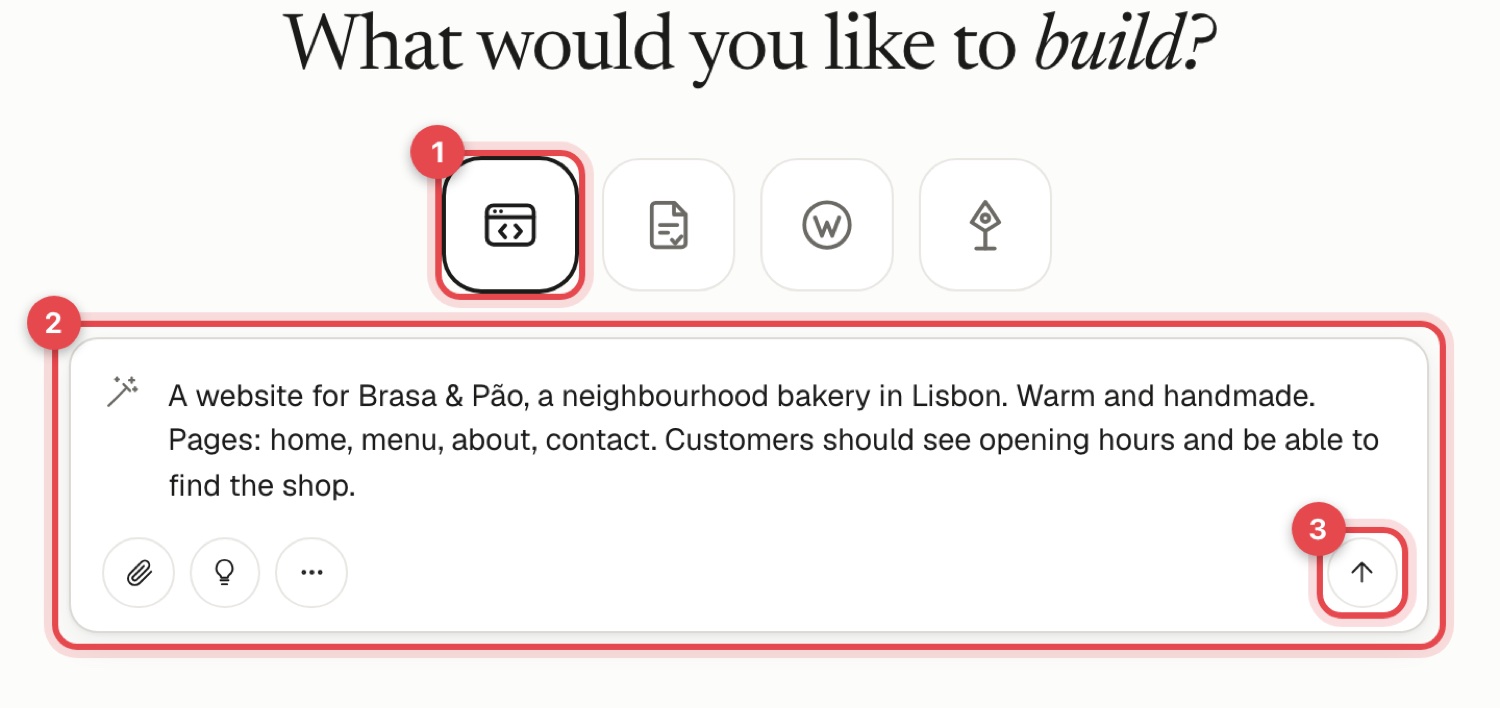
The AI first writes a design brief, then builds the pages, then checks its own work. You can watch each step in the chat.
2. Look at the result#
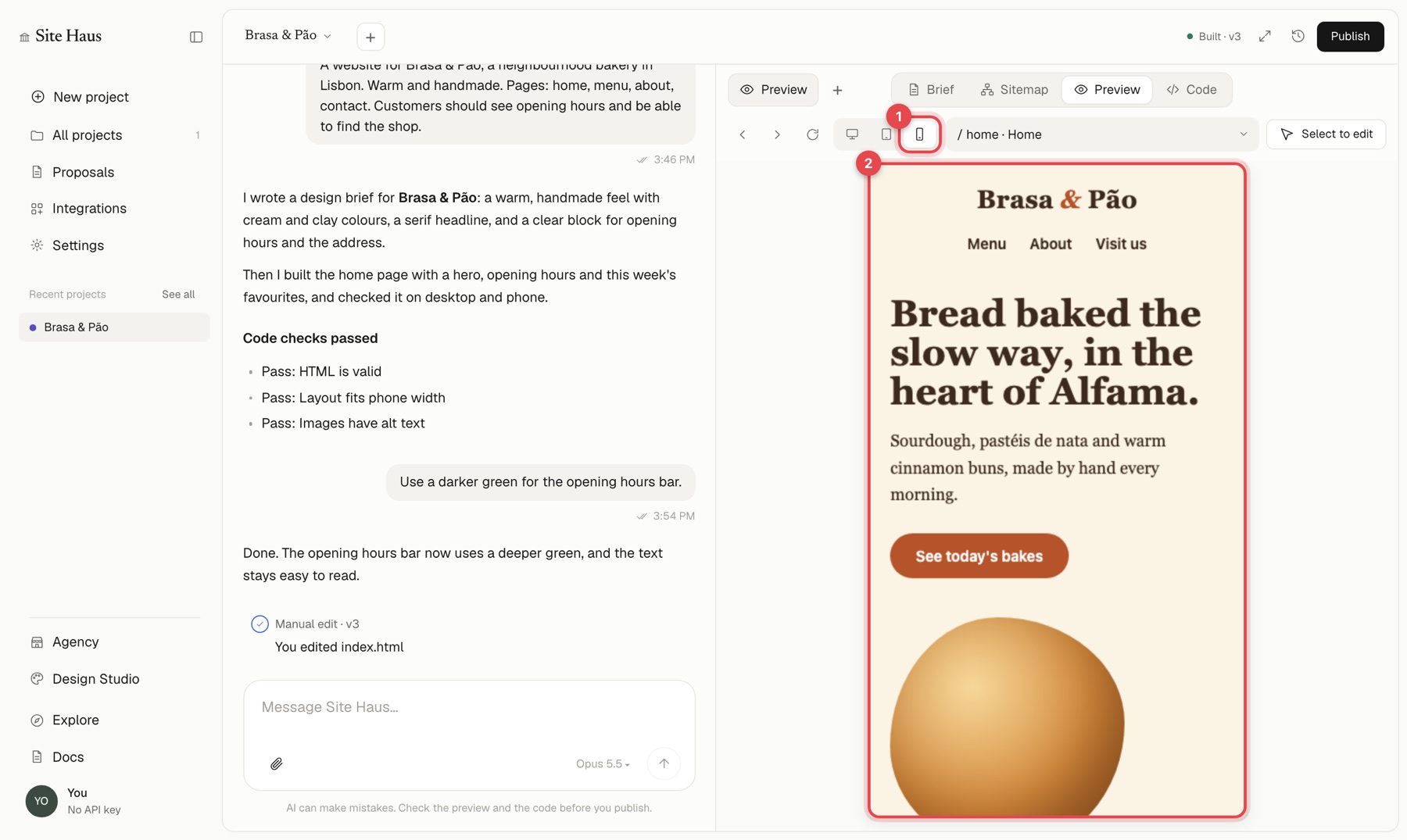
When the build finishes, the preview shows your site. Use the buttons above it (1) to see the phone and tablet versions, and the page picker to move between pages.
3. Ask for changes#
Type what you want changed in the chat, one thing at a time:
- Make the header stay at the top when scrolling.
- Use a darker green for the buttons.
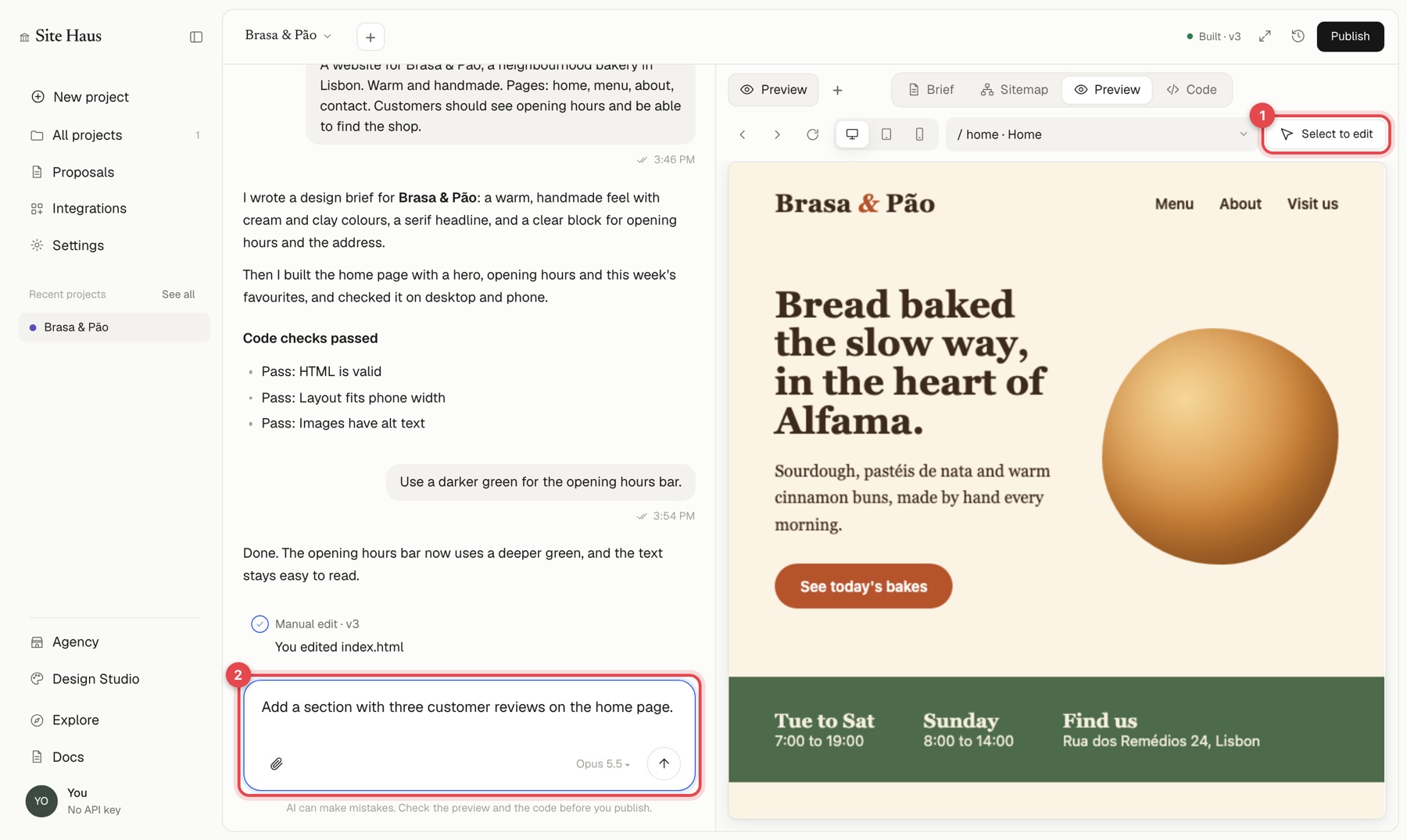
- Add a section with three customer reviews on the home page.
To change one specific part, press Select to edit (1), click the part in the preview, and describe the change.
4. Undo if you do not like it#
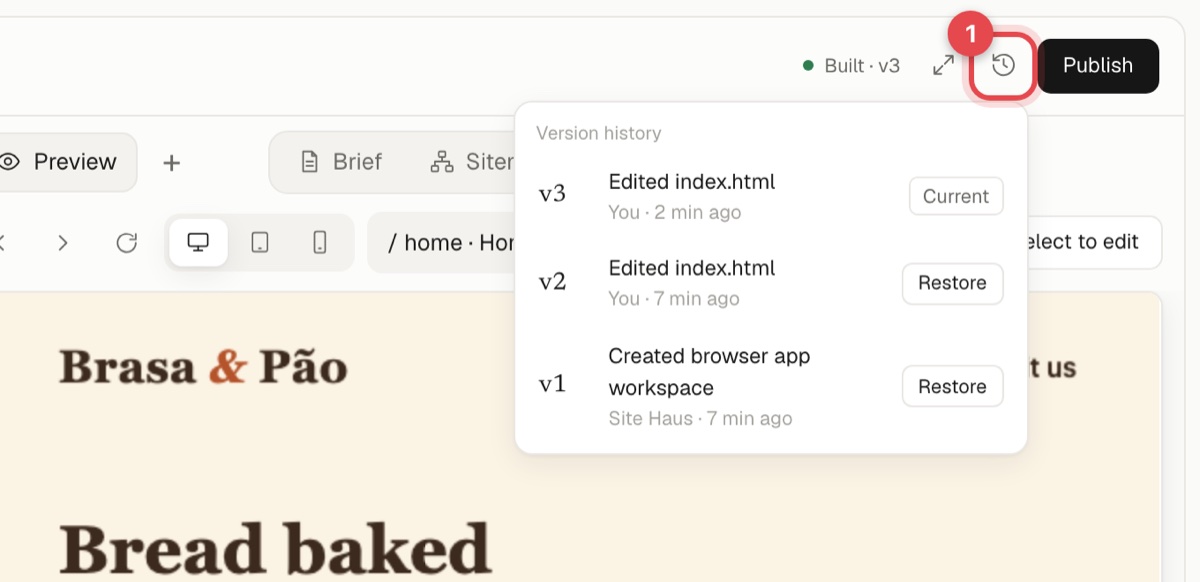
Every change is saved as a version. If the AI goes somewhere you do not like, restore an earlier version from the Version history button (1). See Versions and undo.
5. Share or publish#
Press Publish at the top right. From there you can copy a preview link to show someone, download the project as a ZIP, or put it live.
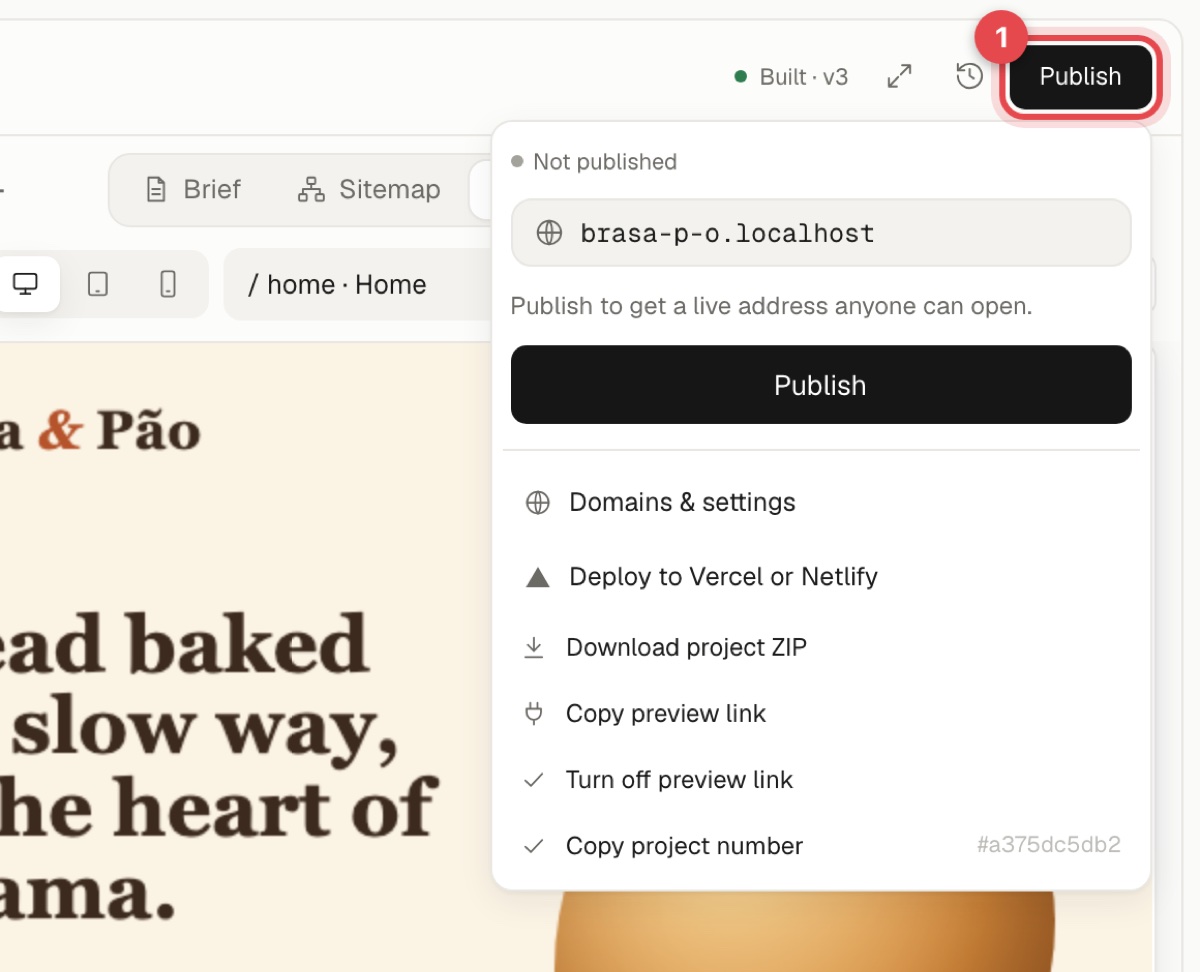
See Publish your site.
Where to go next#
- Add screenshots so the AI matches a design you like.
- Edit your site in more ways.
- Make a proposal for the client you built it for.