Edit your site
Change things by chatting, by clicking a part of the page, or by editing the code yourself.
There are three ways to change a project. Use whichever suits the moment; they all work on the same files.
1. Chat#
Type a request in the chat on the left, and send it. Be specific and ask for one thing at a time.
- Make the buttons rounder and use the accent colour.
- On mobile, stack the three cards instead of showing them side by side.
- Rewrite the about page so it sounds friendlier.
The AI changes the files, checks them, and the preview updates. Every request becomes a new version.
2. Select to edit#
When you want to change one specific thing:
- Press Select to edit above the preview.
- Click the part of the page you mean. It highlights and a small label shows what it is (a button, a paragraph, an image). Click more parts to select several, up to 8. Each one appears as a card above the message box, and the highlighted card is the one you are styling. Press the × on a card to drop it.
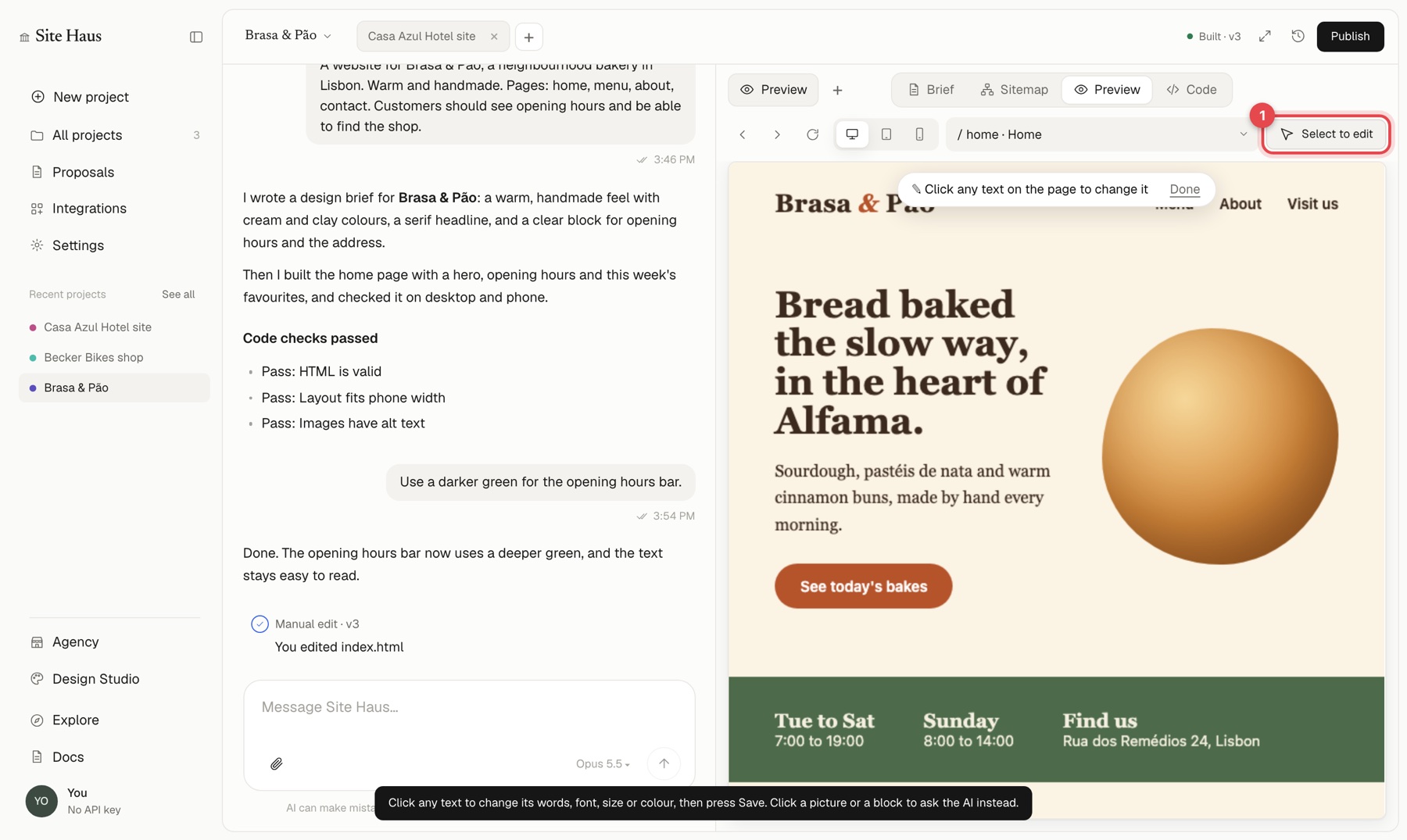
- Change how it looks with the toolbar that appears at the bottom of the preview, and watch the page change at once:
- Fill: the background colour and its opacity.
- Border: width, style, colour and rounded corners.
- Text colour.
- Font: typeface, size, weight, italic and underline.
- Align: left, centre, right or justified.
- Spacing: padding and margin.
- Undo the last change, or Erase your changes to the selected element.
- Press Save or Submit.
- Save is free. When you have only changed text (font, size, weight, italic, underline, colour, alignment or highlight), Save writes it straight into your files as a new version you can undo. No AI is used and nothing is charged. Save is greyed out when a change needs more than that, such as a border or spacing.
- Submit: the AI makes the same changes in your real files, using your existing classes and styles where it can. You can also describe more in the message box before you press Submit, for example and make the heading bigger.
Press H to hide the toolbar while you look at the page, or drag it by its grip (the dots at its left) to move it out of the way.
This avoids the AI changing the wrong thing when a page has several similar parts. The changes you see before you press Submit are only a preview. Nothing is written to your files until you press Save (text changes only, free) or the AI has made them after Submit, which counts as a normal AI request.
Type it yourself#
In a web app or website you do not always need the AI for words. Double-click a piece of text and type to change it. Nothing is written to your files until you press Save, and then the new words are changed in the right place in your files (with no AI request). If the text comes from code rather than the page itself, Site Haus tells you and you can ask the AI instead.
3. Edit the code#
Open Code above the preview to browse the project's files, search them, and edit them yourself.
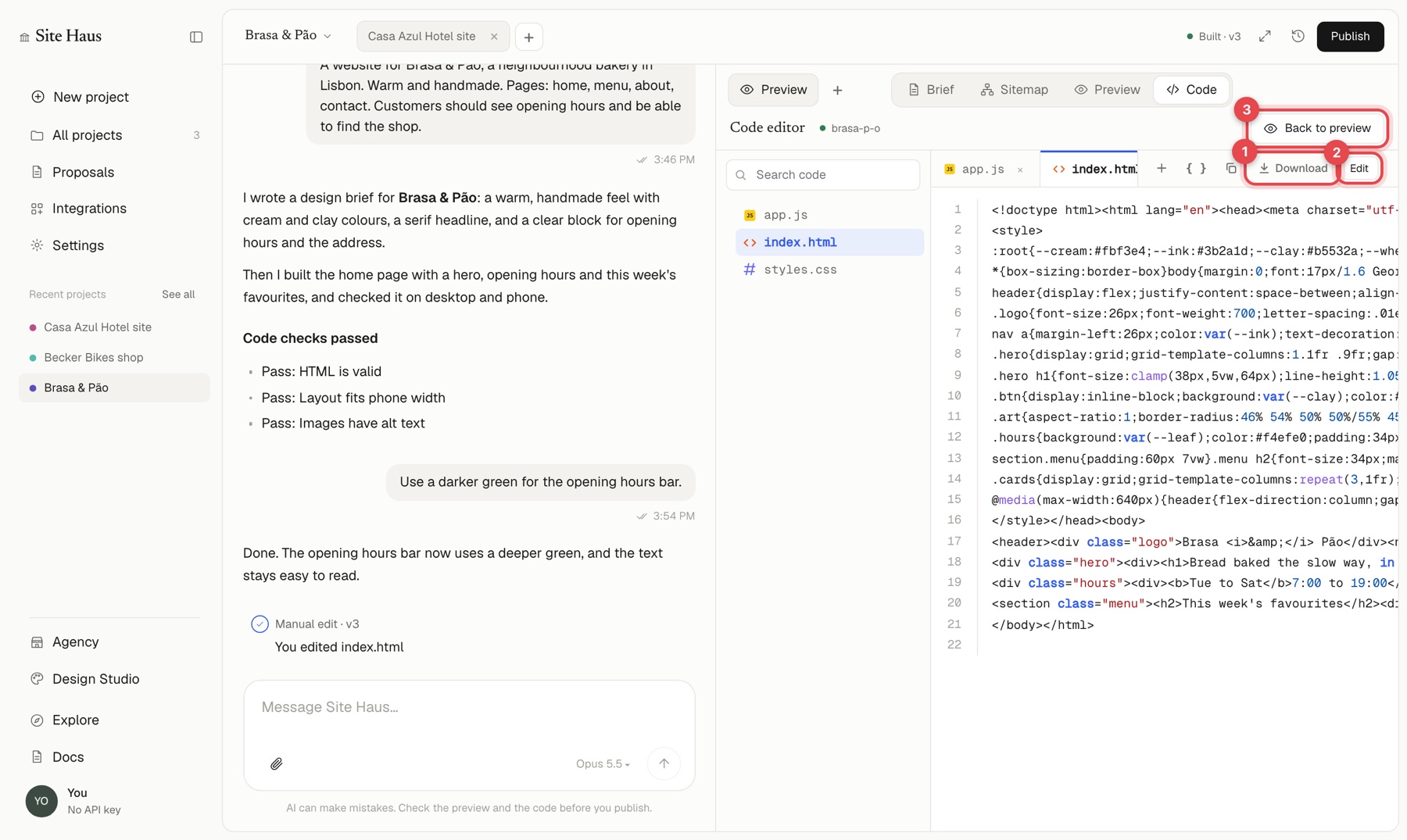
Pick a file, press Edit, make your change and press Save. Saved changes become a version like any other, and the preview reloads. Download saves the file, and Back to preview returns to the site.
You can also see a code diff to compare what changed between versions, and use the + tab above the preview for a terminal when your plan allows it.
Add a page or a section#
Just ask. Add a pricing page with three plans and link it from the header. The AI creates the page and updates the navigation.