Get paid
Pro
Take deposits and full payments by card with Stripe, or in crypto, straight from the proposal.
A proposal can ask the client to pay once they accept. Payments go to your Stripe account or crypto wallet, not to Site Haus.
Choose how the client pays#
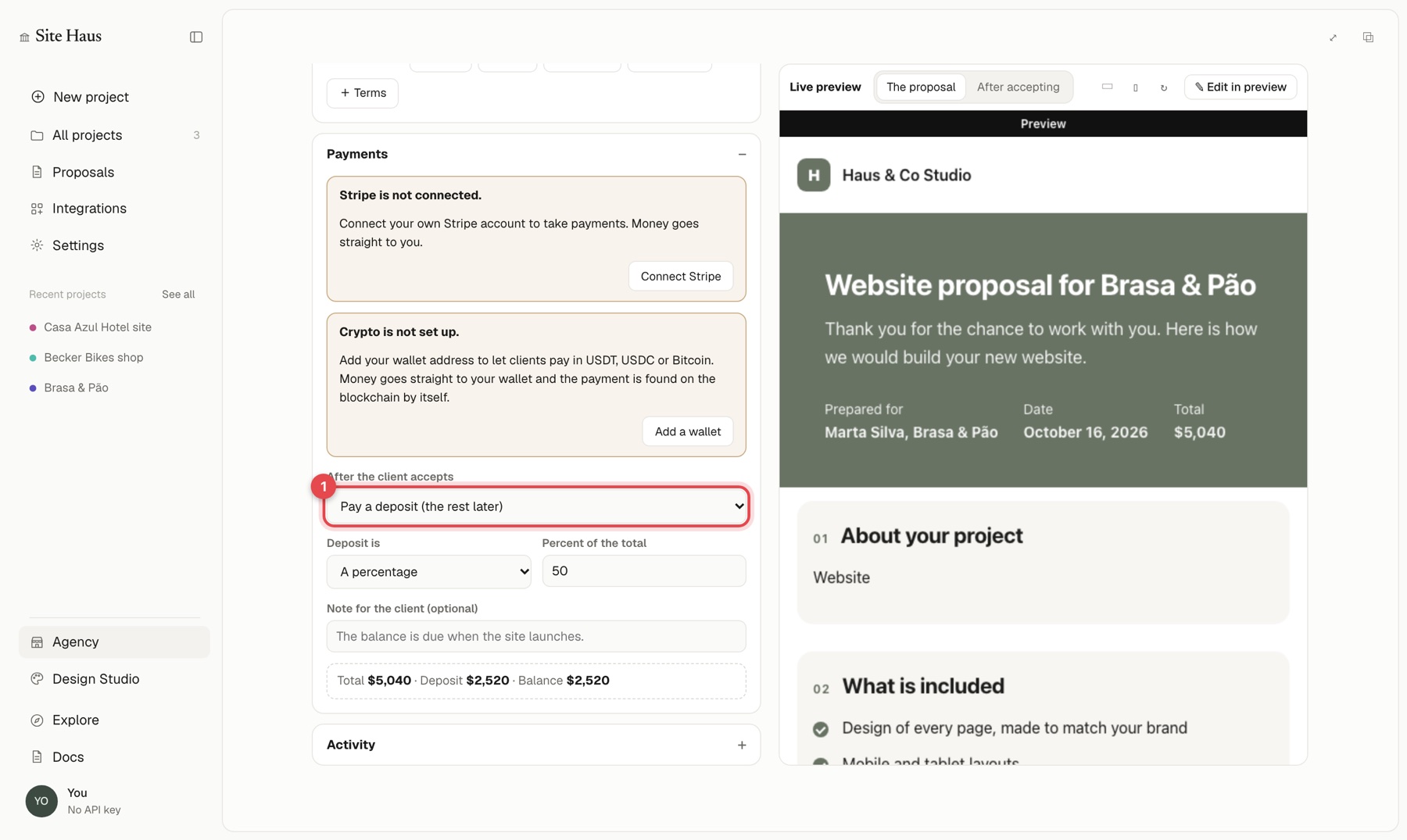
In the editor, open Payments. Under After the client accepts, pick one:
- No online payment: the proposal is just a document.
- Pay a deposit (the rest later): under Deposit is, choose A fixed amount or A percentage. A box shows the total, deposit and balance. Add a Note for the client, for example "The balance is due when the site launches."
- Pay the full amount.
The client can choose the amount that suits them: the deposit, the balance, or everything, before or after paying the deposit. Once a proposal is paid in full, the waiting payment disappears.
Pick which ways of paying to offer#
Under Payments in the proposal editor, each way you have set up has its own switch: Card payment (Stripe) and Crypto payment. Both are on by default. Switch one off and the client no longer sees it on that proposal, and it cannot be started. If you switch off every way, the editor warns you that the client cannot pay online.
Card payments with Stripe#
- Press Connect Stripe in the Payments group, or open Integrations → Stripe, and connect your Stripe account.
- Card details are only ever entered on Stripe's own pages.
Until Stripe is connected, the Payments group says "Stripe is not connected."
Crypto payments#
Press Add a wallet, or open Agency → Payments → Crypto wallets, to add the wallets you want to be paid in (USDT, USDC or Bitcoin). When a client pays in crypto, Site Haus watches the blockchain and marks the payment as paid after it is confirmed. Use Check now to look again, or Add transaction ID if the client sends you the payment's ID. Each crypto payment has a link to a block explorer so you can see the transaction itself, and its full ID is in the payment's details with a Copy button.
The Payments dashboard#
Agency → Payments shows everything clients have paid, what is waiting and what is still owed.
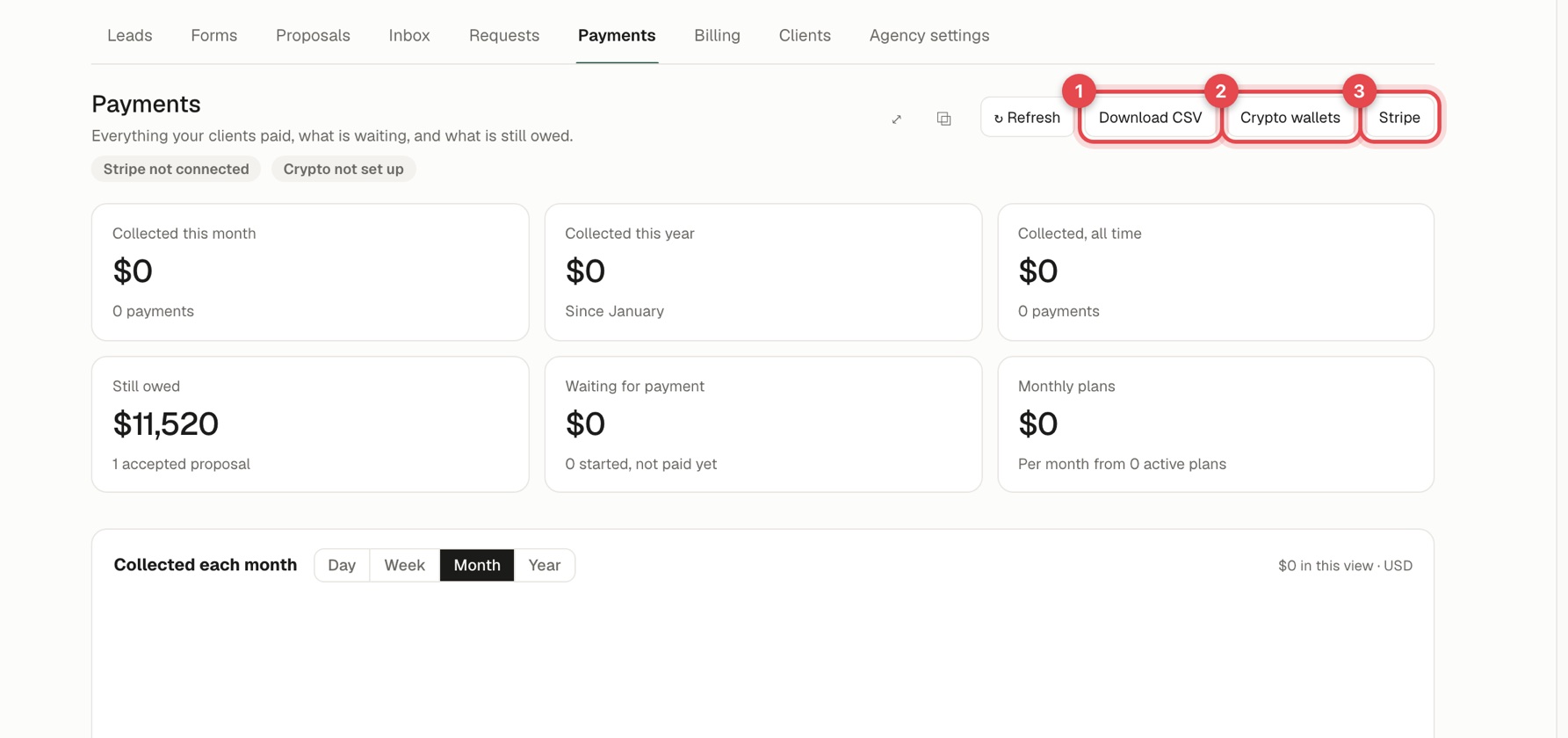
- Cards show what you collected this month, this year and all time, what is Still owed, what is Waiting for payment, and monthly plans.
- A chart shows what you collected each day, week, month or year.
- Below, the All payments list can be filtered by status, card or crypto, and date range, and searched by client, proposal or transaction.
- Download CSV exports it for your accounting.