Edit on the canvas
Pro
Move, resize, group and style layers, work with pages, change brand colours and fonts, and use shortcuts.
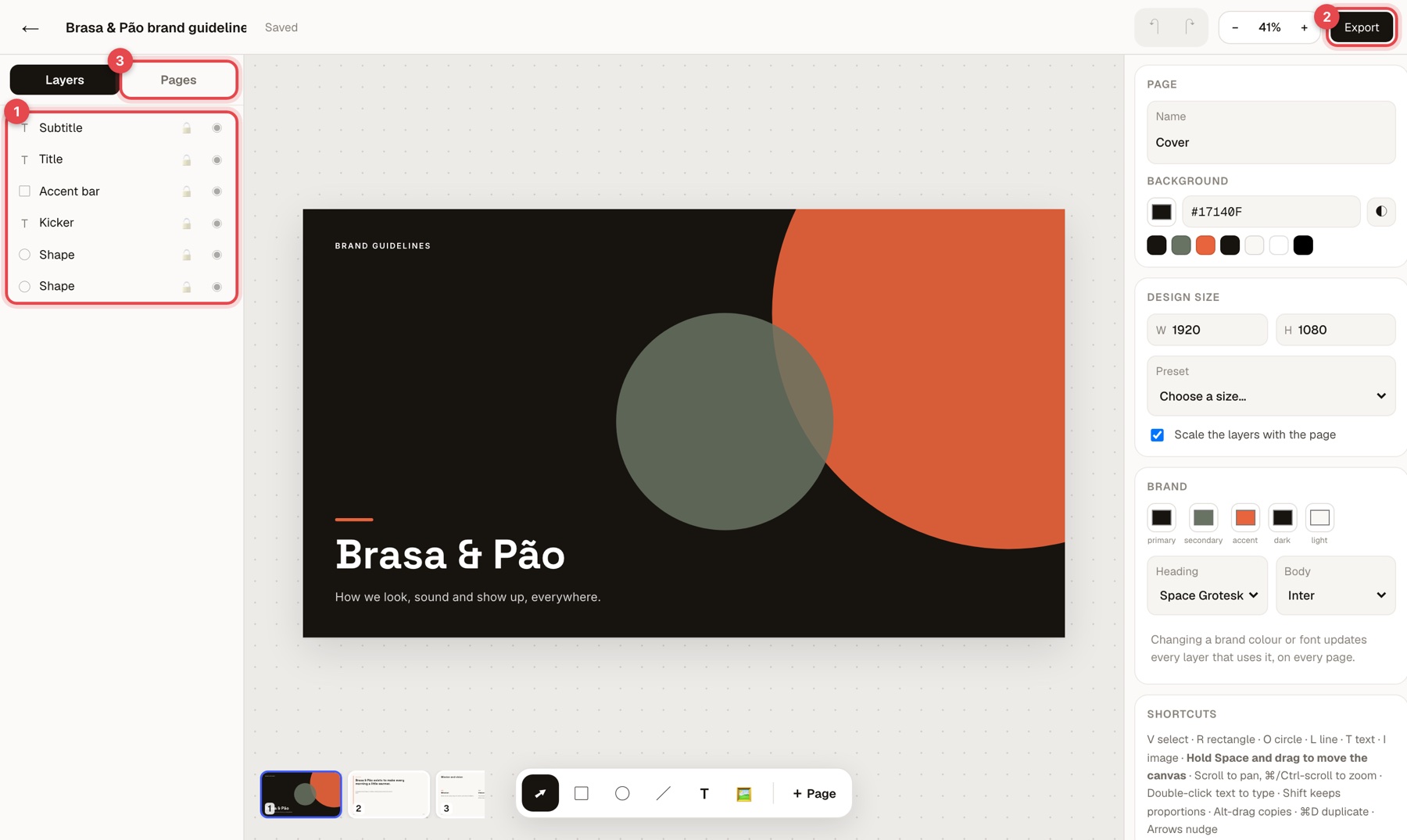
When a design opens you get the layer list on the left (1), the canvas in the middle with a toolbar underneath, and the settings on the right. At the top are undo and redo, the zoom (- and +) and Export (2).
Layers#
Everything on the page is a layer: text, shapes, images. Click one in the list or on the canvas to select it, then drag to move it, or use the handles to resize and rotate. Each layer has a lock and a visibility dot. Double-click a layer's name to rename it.
Use the toolbar under the canvas to draw:
| Tool | Shortcut |
|---|---|
| Select | V |
| Rectangle | R |
| Circle | O |
| Line | L |
| Text | T |
| Image | I |
The panel on the right changes with what you select: position and size, colours and gradients, strokes, shadows, fonts, letter spacing, line height and alignment. Bring to front and Send to back change the stacking order.
- Text boxes grow with their text, so a long word never gets cut off.
- Hold Shift to keep proportions, hold Alt while dragging to make a copy, and use the arrow keys to nudge.
Group layers#
Select several layers and press Ctrl G (Cmd G on Mac) to group them. A group moves, copies and scales as one. Shift Ctrl G ungroups.
In the Layers list a group shows as a folder named Group 1, Group 2 and so on, with its layers inside. Click the arrow to fold it closed or open, click the folder to select the whole group, and use its eye to hide or show all of it.
Pages#
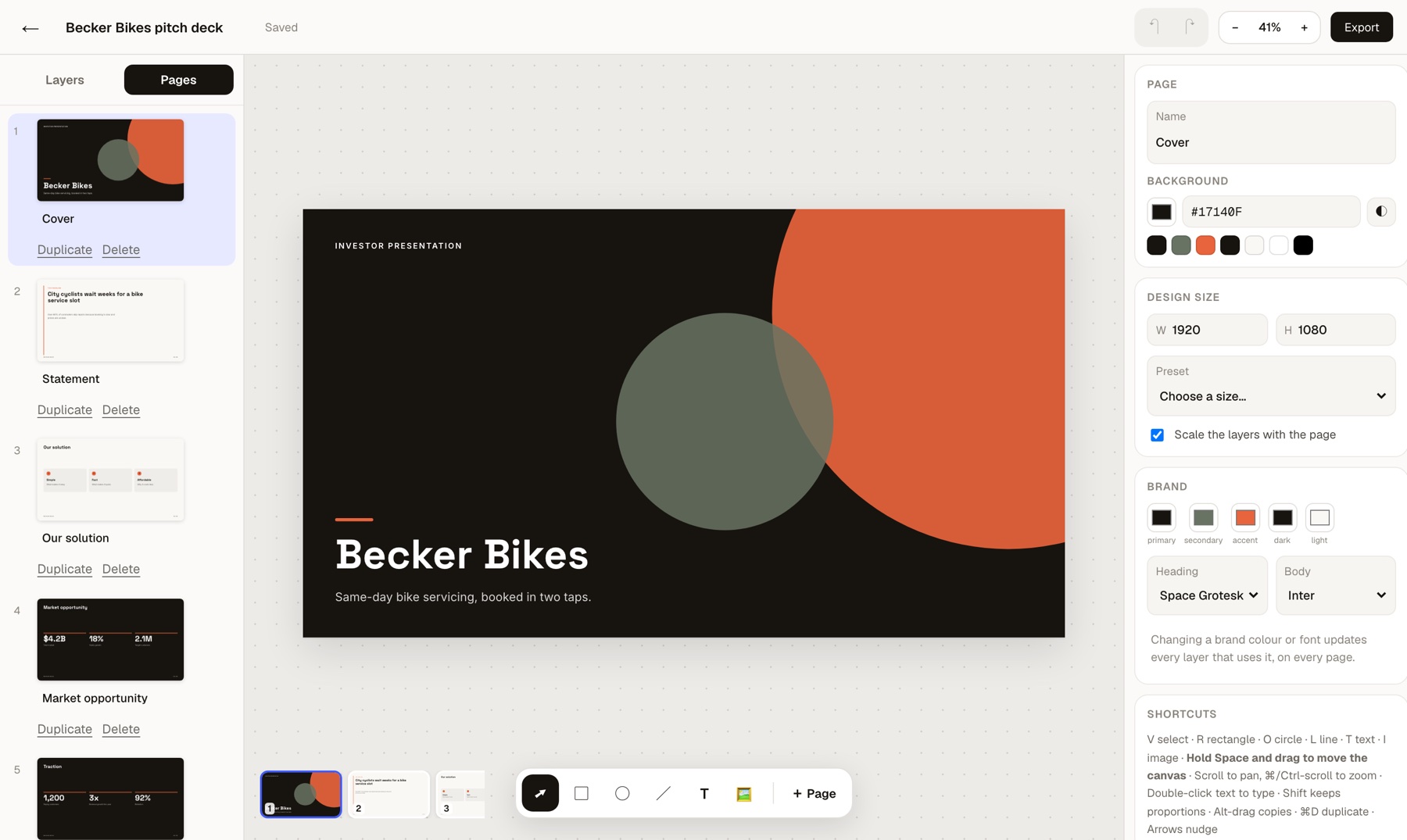
Switch the left panel from Layers to Pages (3) to see every page, or use the thumbnails under the canvas. + Page adds one. A design can have many pages, such as slides or carousel posts.
Page, size and brand#
The panel on the right starts with Page (name and background) and Design size. Pick a preset or type a width and height, and keep Scale the layers with the page ticked so a resize keeps the layout.
Brand holds the colours (primary, secondary, accent, dark and light) and the heading and body fonts. Changing a brand colour or font updates every layer that uses it, on every page.
Move around the canvas#
- Hold Space and drag to pan. Scrolling also pans, and Cmd or Ctrl with the scroll wheel zooms.
- Double-click text to type in it.
- Use the full-screen button for more room, with the option to keep the page centred.
Shortcuts#
| Action | Shortcut |
|---|---|
| Undo | Cmd Z or Ctrl Z |
| Redo | Shift Cmd Z or Shift Ctrl Z |
| Duplicate | Cmd D |
| Group | Ctrl G |
| Ungroup | Shift Ctrl G |
| Bring forward / send back | ] and [ |
| Pan | Hold Space and drag |
The editor also lists its shortcuts at the bottom of the right-hand panel.